
...
| Expand | ||||
|---|---|---|---|---|
| ||||
|
Design

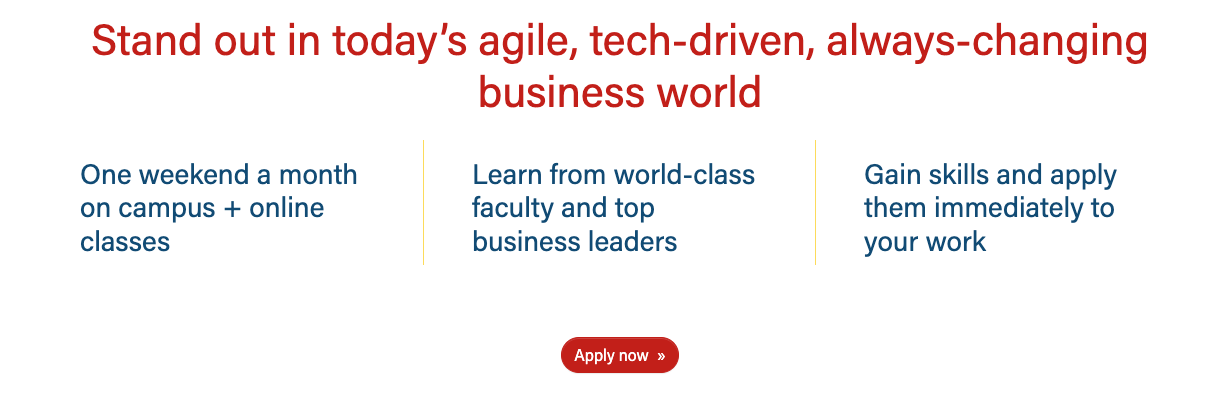
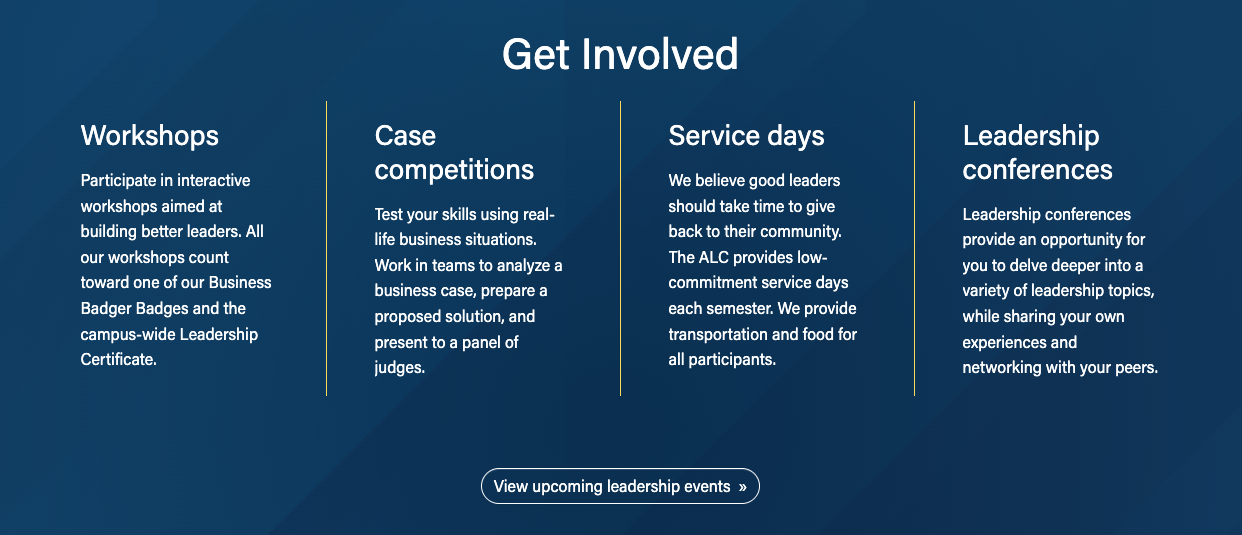

Use when
- Displaying multiple chunks of content with no supporting images. Common uses include:
- At the top of program pages to display 3 claims or differentiators
- At the bottom of a dept./center page to display "Contact Us" content or other CTA content
- A page already has lots of cards with outlines and shadows, to add visual interest
- Adding visual interest to a news story or Update magazine article
Editorial guidelines
Follow our general Web Copy General Guidelines in addition to the following:
Card titles/Subheadings (required)
- Keep each subhead limited to one short phrase
- Character limits:
- 1-3-column layout → ~45 characters max
- If not including any supporting text, the subheads can run slightly longer, 60 characters max.
- 4-column layout → 20 characters max
- 1-3-column layout → ~45 characters max
- Keep all subheads in the same row similar in length
Supporting copy (optional)
- Keep this copy short; one or two short phrases for each topic.
- Character limit: 115 characters max
- Keep all supporting copy in the same row similar in length
Design Assets Needed
- None - typically no assets are needed for this block
Implementation
Documentation updates in progress below
- Background options include no background, red pattern, blue pattern, gray pattern, and image. You can also select to display a yellow divider line between the cards.
Use this block when multiple columns are needed for copy. Reminder, keep copy short.
...
- This block can be used in News or Update post pages.
...
- Be sure to check the Restrict Width checkbox in Configuration
...
- for these use cases. The xl column needs to be set to 0 if there is 1 card.
ACF Fields
...
Add/Edit Cards
Title
- Add the
...
Content
...
- card title or subheading
Content
- Add supporting copy for the card.
- Images can be added to the content
...
- , but this is rarely done for this block.
- Upload the image to the WP media library and copy its URL; then add the URL to the text editor.
Keep copy short!
Link
...
Link
- Add the URL and link text. The link will be styled as a primary button.
- Alternatively, links can be added via HTML in the Content section if you need
...
- a different button style.
- See Button Styles for
...
- commonly used styles.
- Add the link and your desired button style class
Code Block language html title Custom button code <a class="btn [insert-button-style-class]" href="[insert URL]">[Insert link text]</a>
Fields for Introduction
Section Title
...