
Also known as: sound bite, audio clip, podcast player, media player
Description
Plays an audio clip
Purpose
To highlight an audio snippet, or multiple audio snippetsclips, with while also displaying supporting content inside a card , a transcript, and an optional photo for each audio snippetclip.
| Expand | ||||
|---|---|---|---|---|
| ||||
|
Design
Component Library
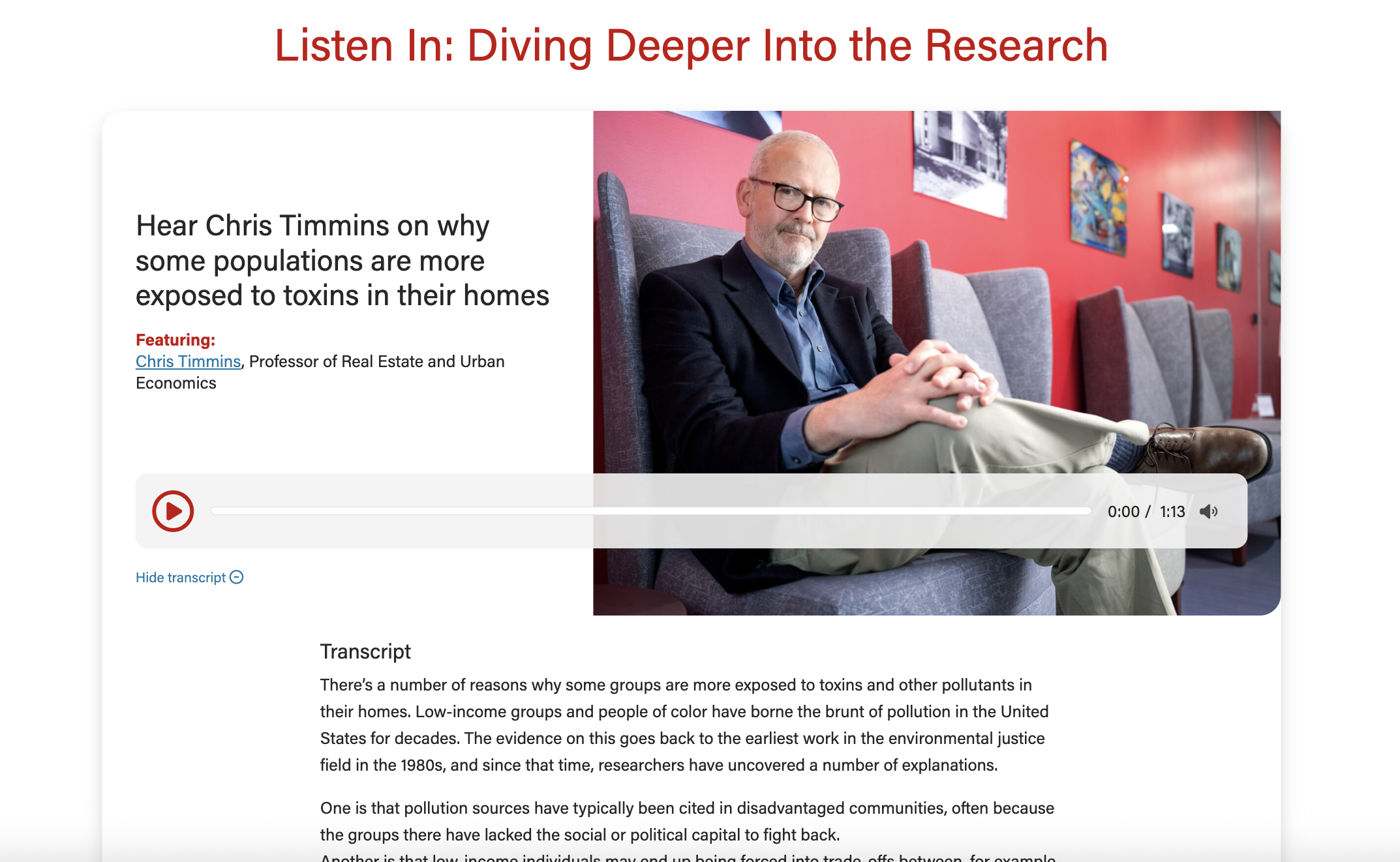
Wireframe - the audio player has a heading that starts "Listen In..."
Screenshots
...
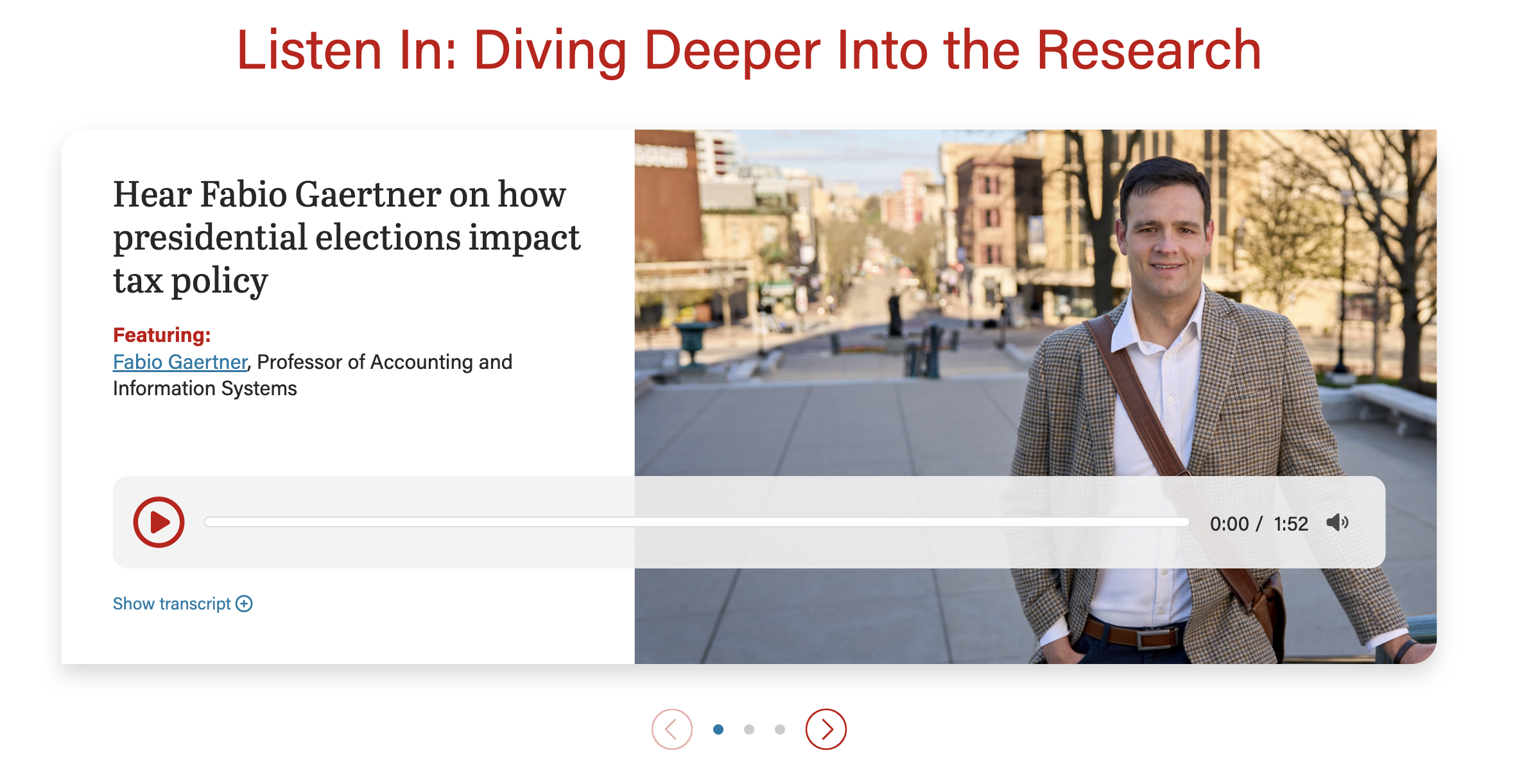
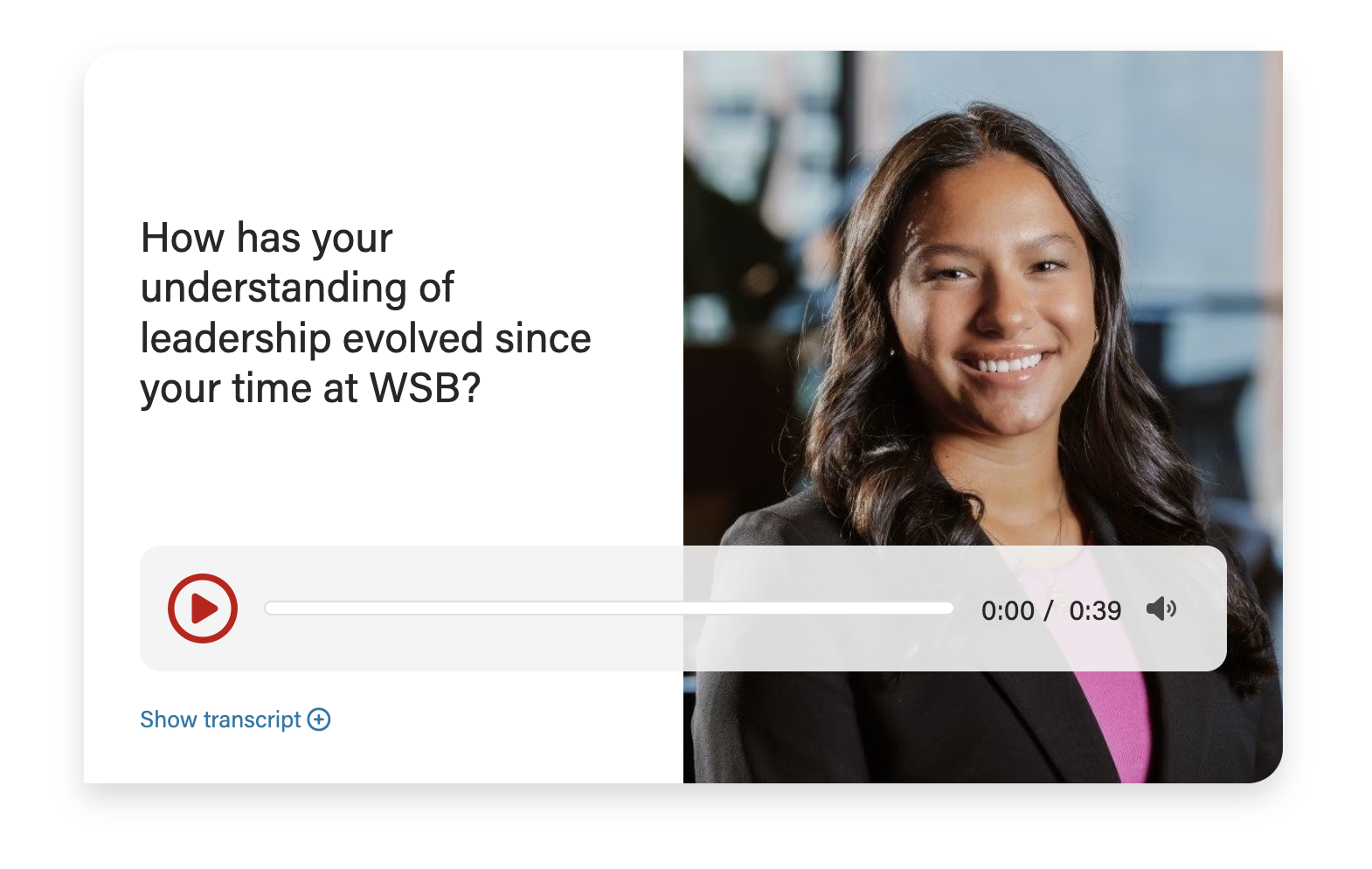
Image 58% wide (with swiper arrows)
...
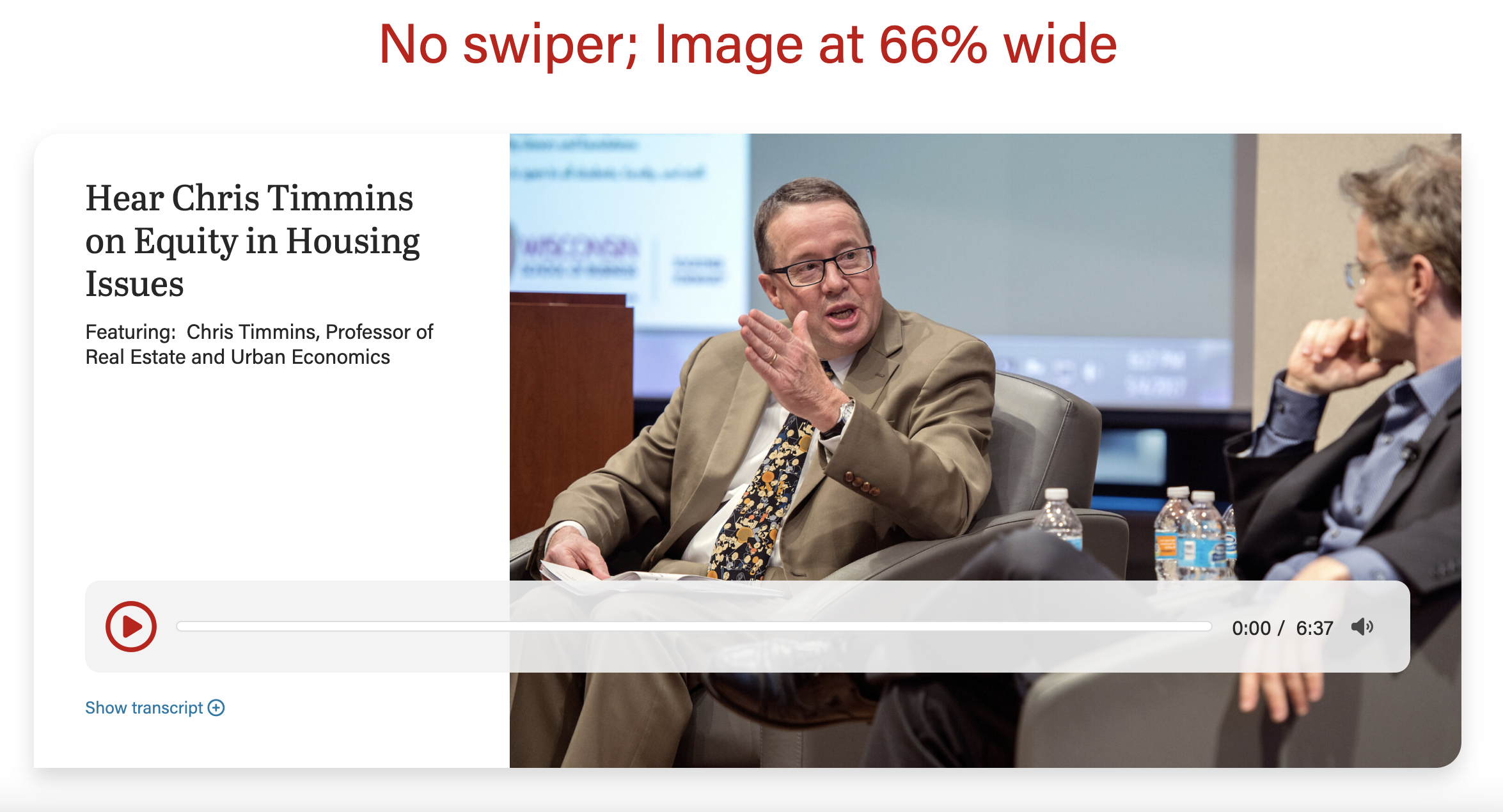
Image 66% wide
...
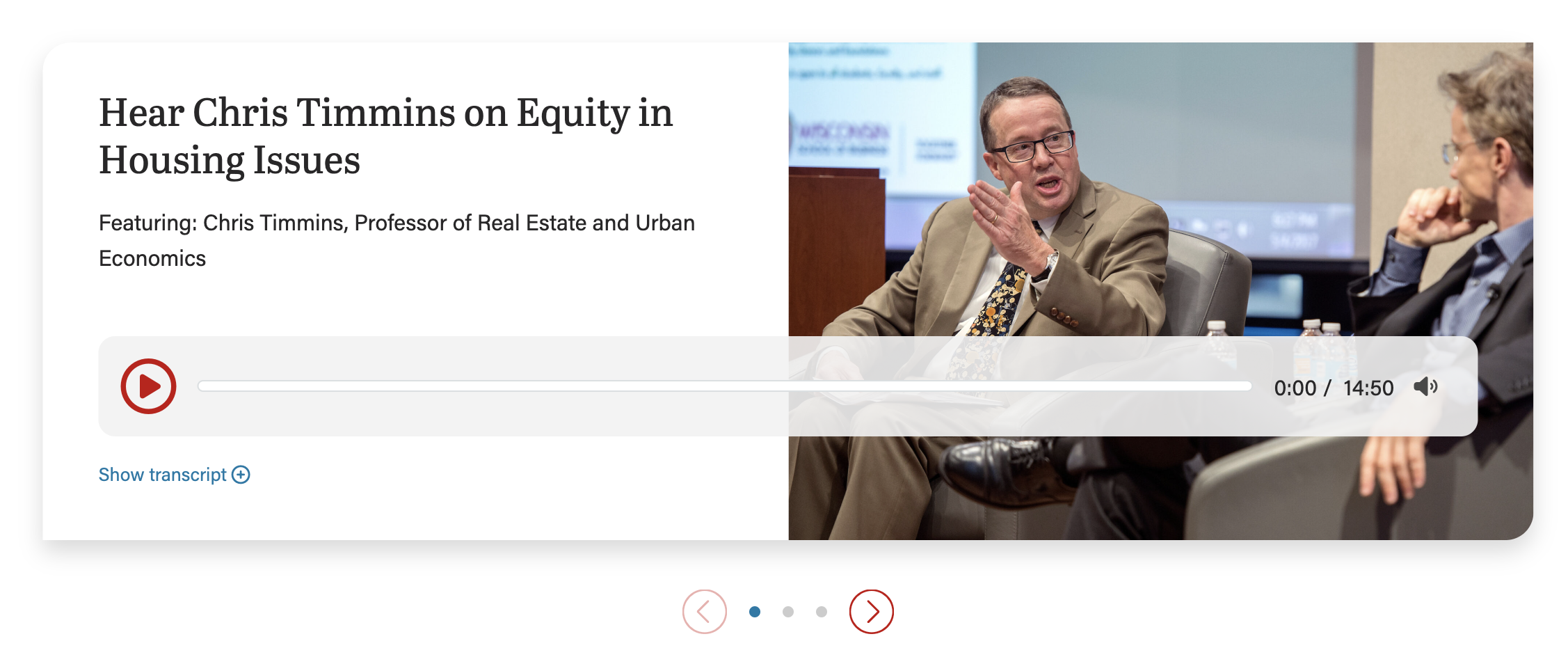
Image 50% wide (default; with swiper arrows)
...
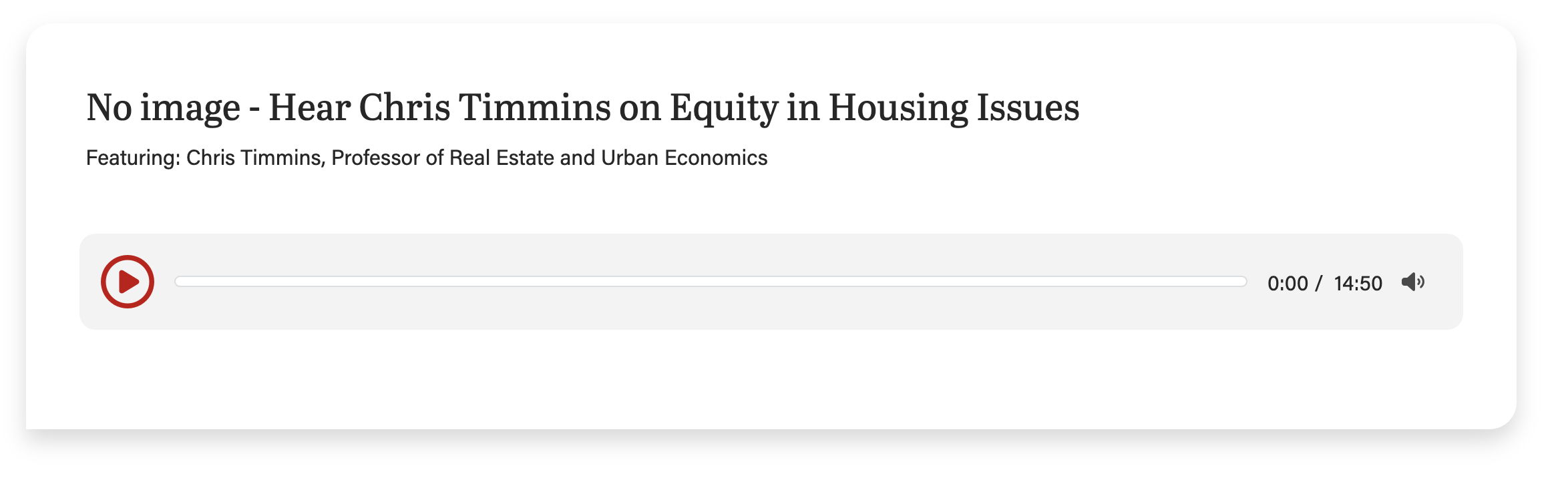
No image
|

Use When
- Embedding one or more audio clips onto a webpage, news story, or blog post.
Editorial Guidelines
Follow our general Web Copy General Guidelines in addition to the following:
- Can only use up to 3 of these fields at a time:
- Microtitle (optional)
- Very short (30 characters or up to 4 words)
- Displays a category/topic to give context
- Heading/title (required)
- Typically an h3 heading
- Subtitle (optional)
- Rarely used
- Supporting content (optional)
- No longer than 1 sentence, ~160 characters
- Often used to highlight key people featured in the clip
- Link text (optional)
- Use sparingly as it will distract users from the primary action for this block, which is to play the embedded audio clip
- Typically used to link to the full podcast episode for the clip
- Microtitle (optional)
- Audio clip (required)
- MP3, WAV, or OGG file
- Transcript (required)
- This is an accessibility requirement
- Should be edited for clarity (remove stutters, repeated words, etc.)
- Include speaker names if more than one person is featured in the clip
- See AI Hub for Business for an example of this
| Info | ||
|---|---|---|
|
Use Cases
Use this block to embed an audio snippet with supporting content (heading, optional photo).
Use this block to embed multiple audio snippets, each in their own card.
Can be used on a Page or in a Post
| Info | ||
|---|---|---|
| ||
Keep copy short inside the card when using an image for this block. Too much copy will break the layout (the card will extend below the image), so test the block with the content in it at every breakpoint (screen size). This screenshot shows the card with too much copy, causing the layout to break:
|
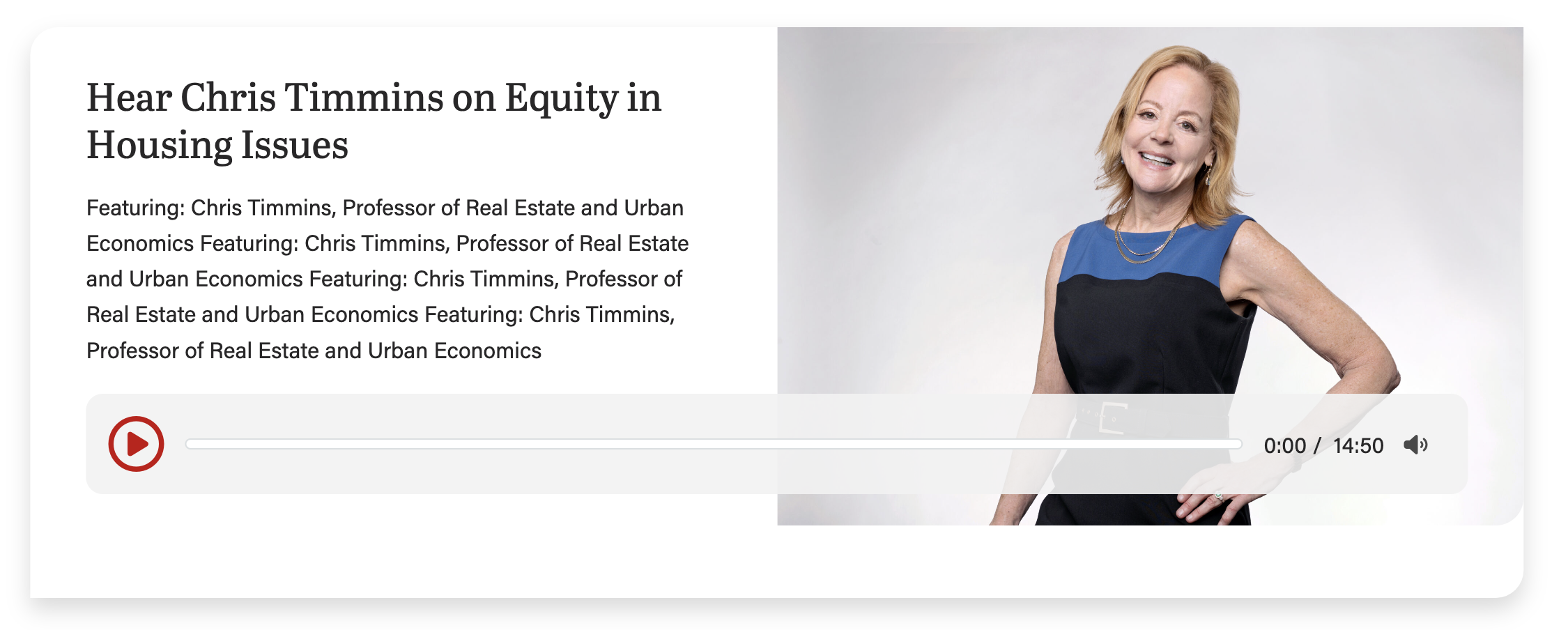
42/58 layout (use most often)
This layout can be used anytime you need an image next to copy.
Design Assets Needed
Image (recommended)
- One for each audio clip
Use large, high-quality images that are 2400 x 1600px. Using a shorter image may break the layout by causing the card to extend below the image (see callout above).
- You can try using taller images. Example: This news story from 2025 uses a custom-cropped photo that is 2400x2817px
Implementation
Block layout options
Listed from smallest image to largestTo use this layout, choose 58% for Image column width field, under Configuration.
50/50 layout (default; use often)
...
- Use this layout when the image is not as important or does not have small details that are important to see.
- This is the default layout of the block.
42/58 layout (use most often)
- Use for most cases.
- To use this layout, choose 58% for Image column width field, under Configuration.
33/66 layout (use sparingly)
- Only use this layout when you have a very small amount of copy (< 250 characters total).
- To use this layout, choose 66% for Image column width field, under Configuration.
Card-level Fields
Additional fields are listed under editorial guidelines above.
Audio (required
...
Title
for each card)
Upload or use an audio file from the media library. Only MP3, WAV, and OGG files are supportedThe card title. You can select the heading size in the card configuration.
Heading Size
You can select H2 - H4 heading sizes.
Subtitle
The card subtitle.
Image
Use large, high-quality images that are 2400 x 1600 or smaller.
...
The image can be on the left or right side of the page.
Micro title
The card micro title.
Content
The supporting copy. This should not be more than 1 paragraph or 4 sentencesfit on 3 lines (~160 characters). Make sure the amount of copy in the card looks good. If not, cut some of it or ask a writer to cut some of it.
Transcript (required)
The audio transcript. Required for accessibility. Causes a "Show transcript" link to appear at base of the card.
Link (use sparingly)
The URL. Use sparingly as it will distract users from the primary action for this block, which is to play the audio snippet.
CTA Styles
You can pick text link or different CTA styles a CTA style for the link.
Block-level Fields
Stretch Link
The text will become stretched and has the raised hover effect. In addition, the title will become the link location with an outline effect when tabbed.
- This should only be used when the card is displaying an outline and shadow (i.e. 33/66 layout or 50/50 layout with Overlap Text ON).
- For right now, this field is to be used for Update Magazine.
Overlap Text
The text will have a shadow and overlap the image. NOTE: Only use with the 50/50 layout.
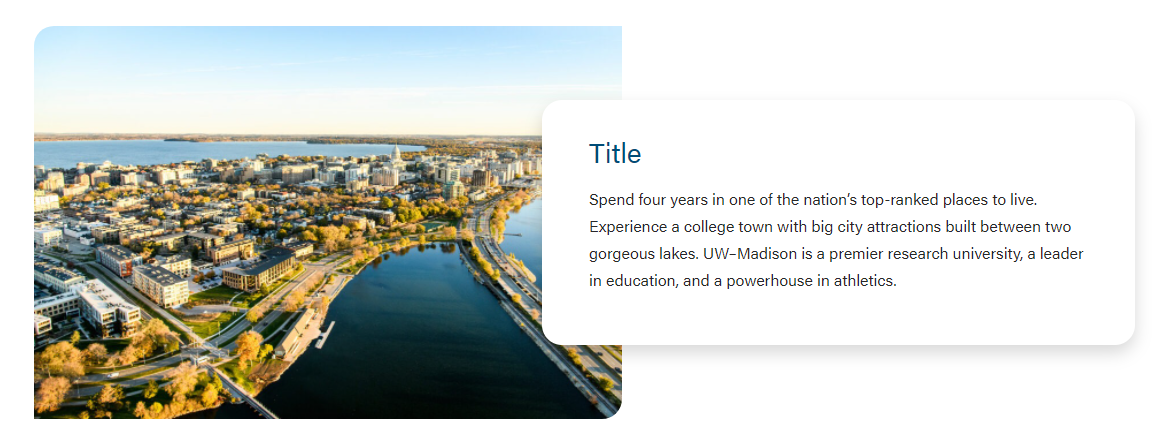
Image Width
You can select the following sizes.
33/66
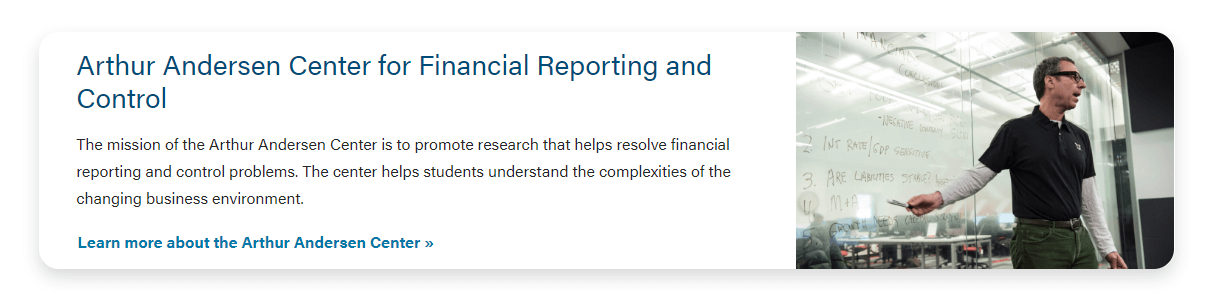
50/50
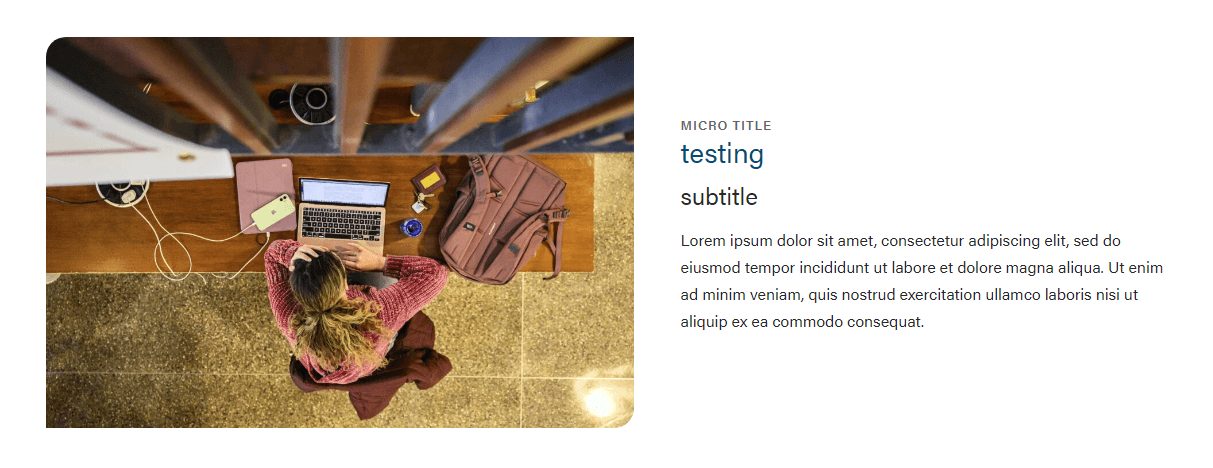
Image Column Width
Default is 50%. Can also choose 58% or 66% for image width. See details above
Enable Swiper
If you have multiple cards in one block, you can choose between using a swiper or stacked stacking the cards on the page.
Resources
- Figma mockup (coming soon)
Future dev updates for this block
- Consider adding keyboard arrow controls for swiper slides, as long as it doesn't interfere with arrow actions for the audio controls (e.g. scrubbing and volume control).
- When the swiper slide is changed, set focus on first focusable element in the now active slide (Erica tried to do this when creating the block, but it created other problems with the swiper code)