
...
- Subject line: "Research Seminars WordPress Access"
- Your first and last name
- Your netID (note – this is not a staff/student your username, not your ID number)
- Your status (student employee, staff, or faculty)
- Which dept/program you work for
...
- The date (but not the time) of the seminar.
- The Title (Topic) of the seminar.
- The Speaker Name.
- The Speaker's affiliation/school. (optional)
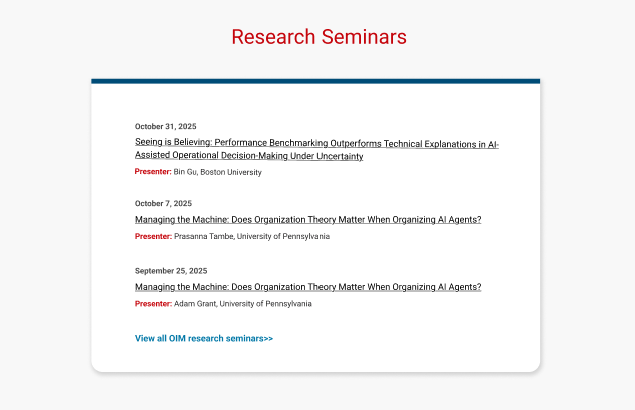
The Seminar Page is where the details of each seminar are displayed. Your department may not have a need for these additional details, and you can leave them blank.
...
- The Department of the seminar.
- The Title (Topic) of the seminar.
- The Speaker Photo (optional)
- The Speaker Name.
- The link to the Speaker's profile (optional)
- The Speaker's affiliation/school. (optional)
- The date of the seminar
- The time of the seminar (optional- set to 12am if you don't want it displayed)
- The location of the seminar (optional)
- A registration link to the seminar, which is automatically hidden once the date has passed. (optional)
- The description for the seminar (optional)
- A link to the seminar topic's paper (optional)
- A link to the recording of the seminar (optional)

Add a New Seminar
- Navigate to Research Seminars in the left menu. It should be at the bottom.
- If you don't see Research Seminars, you will need to request seminar editing access from the web team.
- Click Add New Item (see the two locations for this button in the screenshot below)
...
- Similar to creating a seminar, navigate to seminars and choose yours from the list or use the search to find it.
- Hover over the name of the seminar to see options for editing or deleting your seminar.
Unpublish
...
a seminar
To remove a seminar from the listing on our website, but keep a draft of the seminar page for future reference, you can unpublish the seminar.
...