
-
Created by
 Kassandra Swearingen, last updated by Erica McConnaughey on Mar 23, 2026
9 minute read
Kassandra Swearingen, last updated by Erica McConnaughey on Mar 23, 2026
9 minute read
Also known as: card with popup
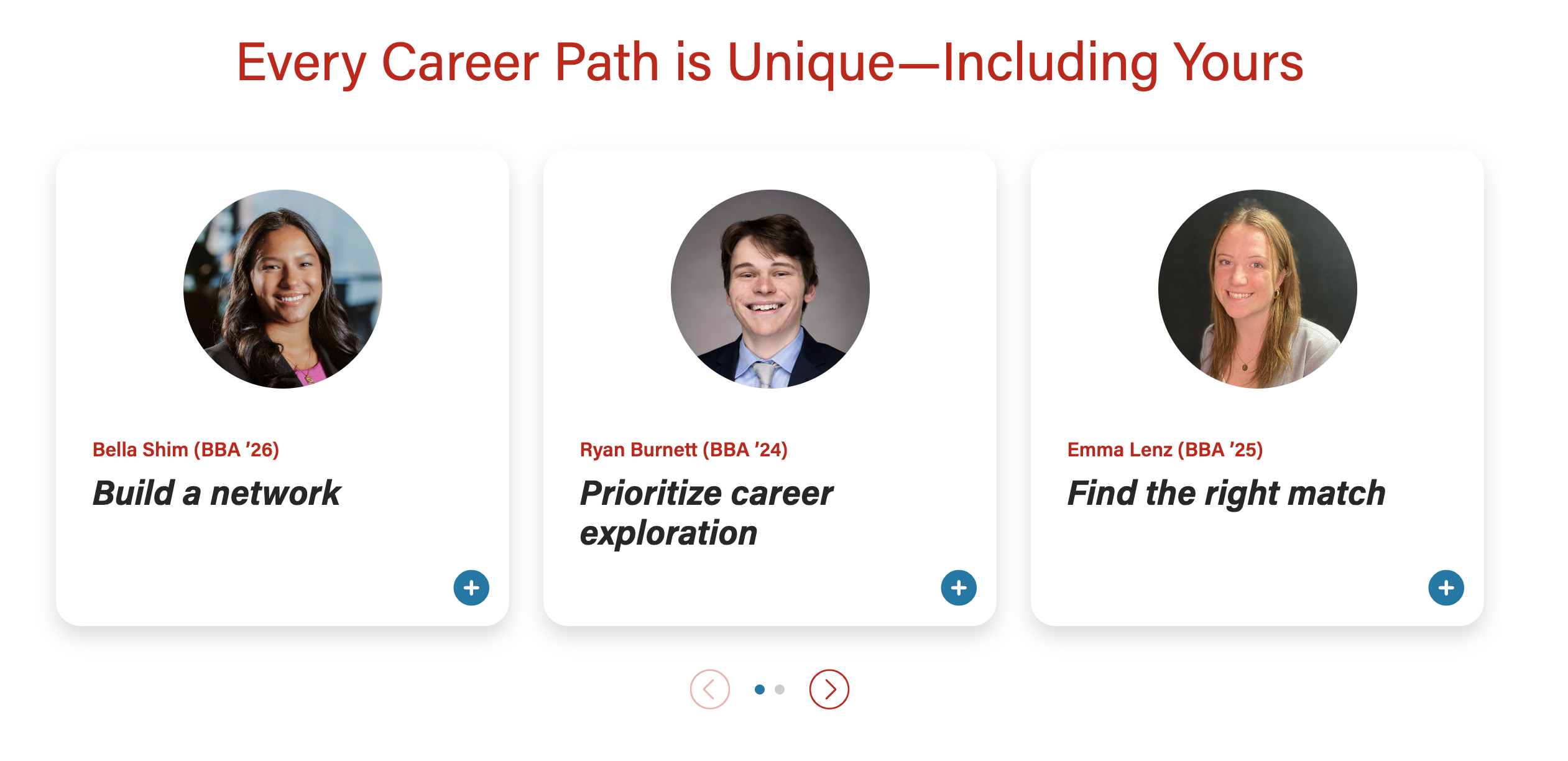
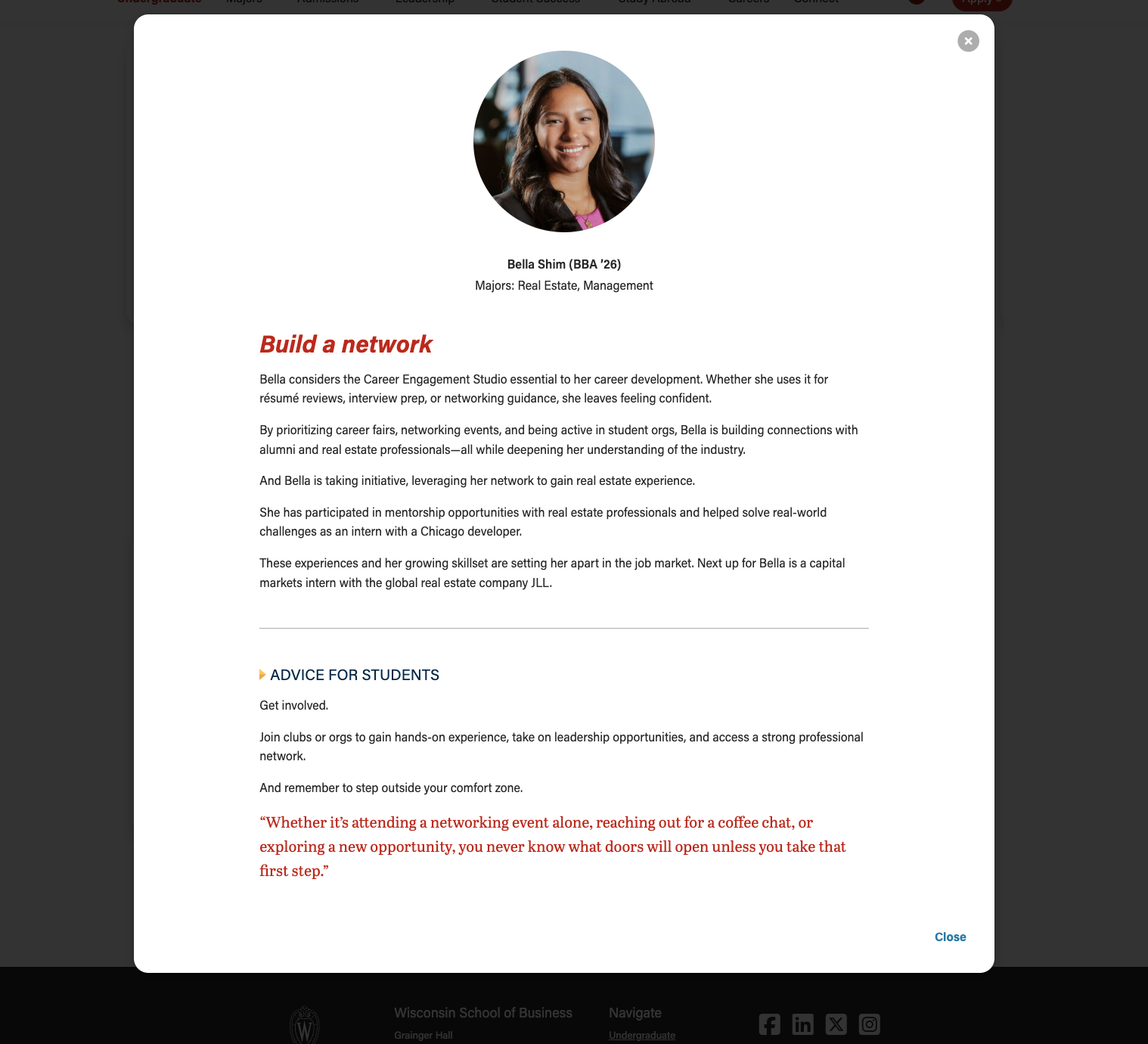
A card displaying a photo and brief teaser copy. When selected, the card opens a modal (popup) with more details about the topic or person.
Examples
Example 1 - Modal open
| |
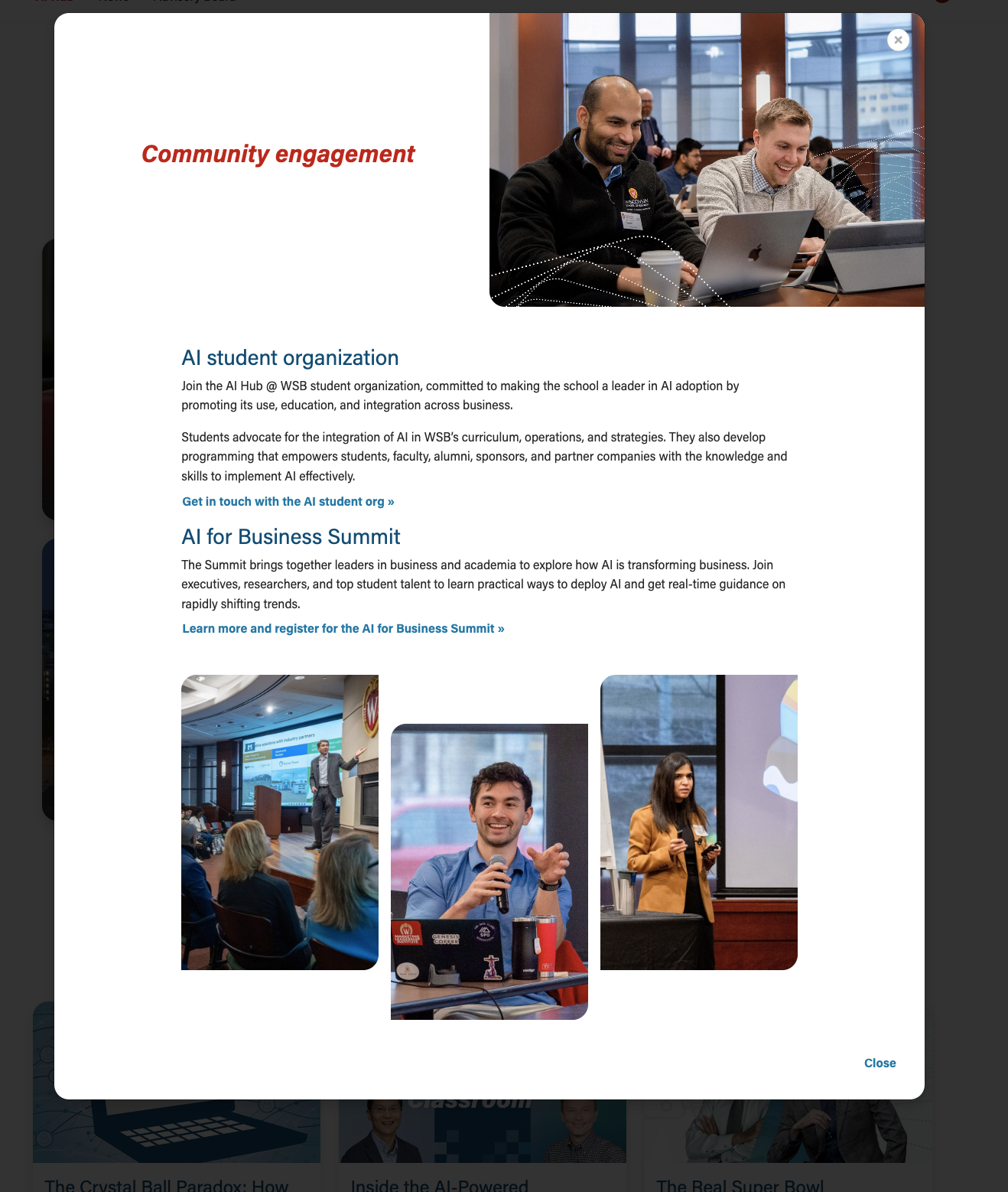
Example 2 - Modal open
|
Use When
- Storytelling; sharing a person's profile or career background (examples: BBA Careers, Companies and Recruiters)
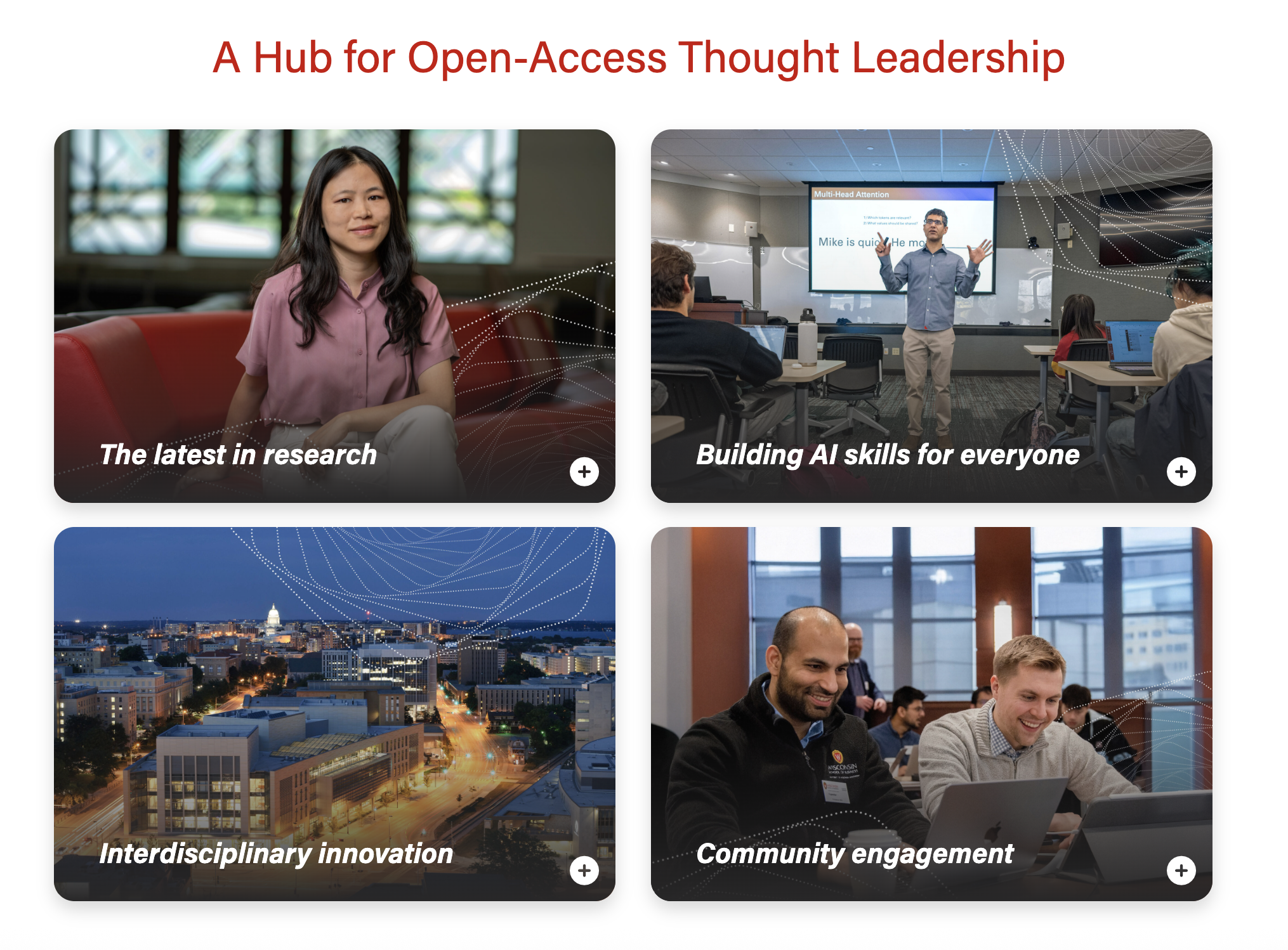
- A single card can display multiple details or subtopics for a single topic (example: AI Hub page)
- You have content to fill at least 2 cards and their modals (this component doesn't look as nice when there is only one card)
- This component works great when you have varying amounts of details for each topic. (e.g. when you have 2 detail paragraphs for topic A and 4 paragraphs for topic B)
- There is enough quality content such that interacting with the modal feels worthwhile to the user.
- Don't just fill the modal with fluff to try to make this component work. If it is a struggle to create enough content for each of the cards, consider using a different component with less copy and/or organizing the content differently.
Editorial Guidelines
For the cards
Limit the amount of copy in the cards, since more detail will be shown in the modals.
- Microtitle (optional) - Keep this short. Can be used as a microtitle or for person's name with parentheses for graduation program and year
- Character limit: ~40 characters
- Copy should fit on one line, so the limit depends on number of columns in the layout (more columns = less room for copy)
- Use this field OR the card supporting copy field, especially for cards with full-width background images.
- This content will display in the modal header or it can be hidden there
- Character limit: ~40 characters
- Title (required) - This field must have content so the card has a proper html heading
- Character limit: 40 characters
- This content will display in the modal header or it can be replaced there with a longer title
- Card Supporting Copy (optional) - Use sparingly. Only use when the title character limit is too restrictive for your needs.
- Character limit: 70 characters
- Use this field OR the microtitle field, especially for cards with full-width background images.
- This content will not be displayed in the modal
For the modals
Modal header
- Microtitle (optional)
- Card microtitle can be displayed here or hidden
- Title (required)
- Card title can be displayed here or overridden with a slightly longer title
- Character limit: 50 characters
- Supporting detail (optional)
- Brief copy to display job titles, company, and/or majors
- Character limit: 100 characters
Modal body
- No character limit, but keep the length within reason. Typically, modal content spans 3 to 6 short paragraphs.
- Follow web best practices for keeping content easy to digest and scannable
- Use subheadings if you include more than 2 paragraphs
- We can include a variety of content here, such as:
- paragraphs
- pullquotes
- supporting images
- photo collages
- an embedded YT video
Implementation (in progress)
Variations (more screenshots showing additional features)
- Should be an orderly progression, not an attempt to show every possible combination
ACF Fields
Other technical details we already include
Resources
- link to component mockup in Figma
Design + Photos
Card photo (required)
- Circle crop headshot
- Square photo with face centered
- 500x500px or 1000x1000px
- Full-width photo
- Standard photo size - 2400x1600px
- Face should be in top 1/3 of image so it doesn't get covered by text at the bottom
- We can add vertical images to make the cards taller, if desired. But all photos for cards in the same row/block should have the same dimensions.
Modal header photo (optional)
- If the card photo will not work for the modal header photo, we can add an override for the modal
- Match the specs for the matching card photo provided.
- Note that this photo should be similar to the card photo (same person, similar pose, same outfit) so we don't cause user confusion. A similar photo should reassure the user that they opened the modal and are seeing something they expect to see.
Modal supporting images (optional)
- We have a lot of layout flexibility in the modal body. Work with a web developer if you have a layout idea that you don't see here.
Company Logo
Logo displayed next to name, title, and company
- Logo specs: 512px wide, height will vary
Layout created for T2L4

Image beside text
- Image can be on right or left side
- Text can be styled as a quote or not
- Text can include multiple paragraphs next to a larger image

- Image beside text
Variations
- Swiper or stacked cards
- Circle crop photo or full-width photo
- 50/50 or full-width modal header photo
- modal content
- career points
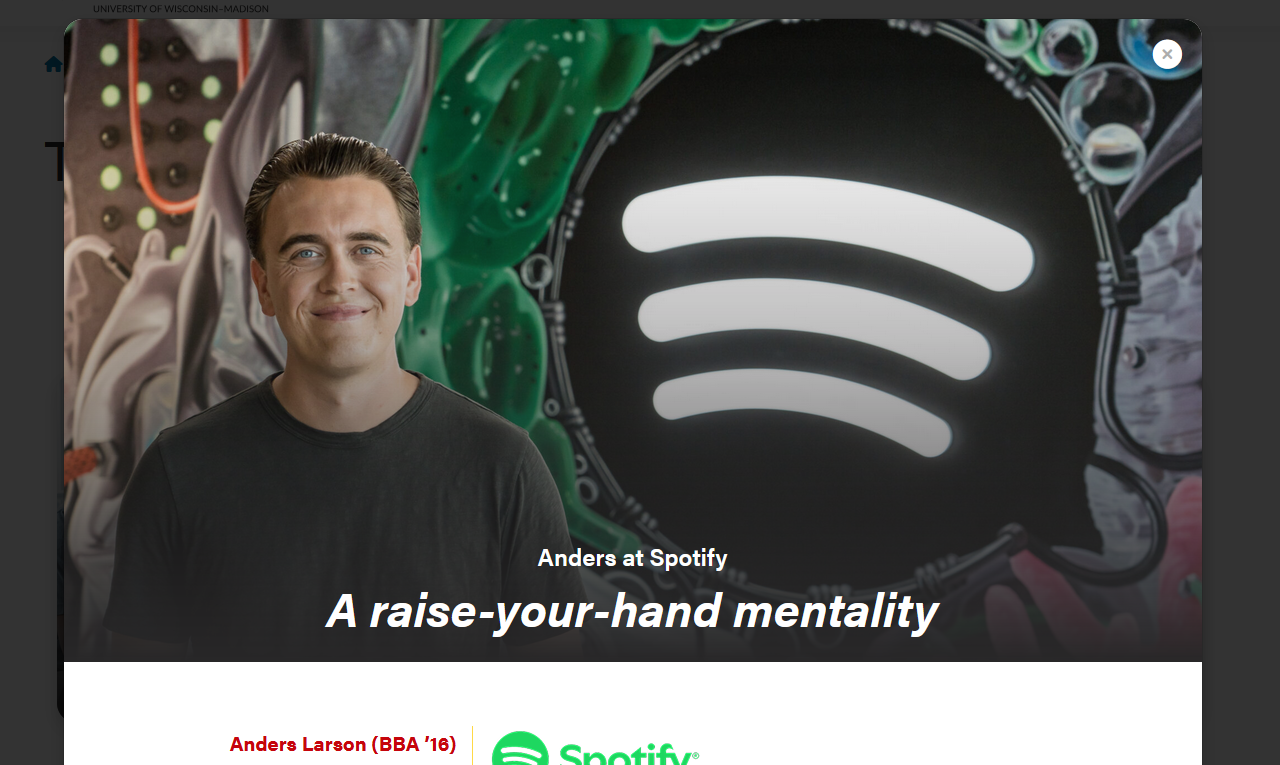
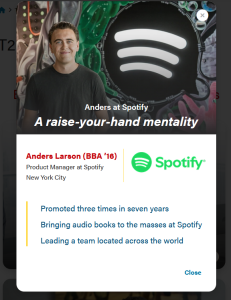
Modal with full-width image. Text overlaps image, with a dark gradient for contrast. Mobile/tablet sizes just have smaller text.
|
Fields
Card
Remind writer/strategist we must limit the amount of copy in the cards, since more detail can be shown in the modal. This is especially true for the full-width photo layout, since we don't want the copy to wrap and be so tall it covers faces in the card photos.
- Microtitle (optional) - Keep this short.
- This content will display in the modal header by default. Set the "Display card microtitle in modal header?" field to "no" if you want to hide it in the modal
- Title - This field must have content so the card has an html heading
- This content will display in the modal header by default. Add content to the "Modal Title Override" field to replace it.
- Card Supporting Copy (optional) - Used sparingly.
- Use this field OR the microtitle field, especially for cards with full-width background images.
- This content will not be displayed in the modal
- Card Image
- For circle crop - face must be centered in a square photo
- For full-width image - face should be in top 1/3 of the image
- but you will need to add a horizontal image to the modal image override field for the image to display correctly at the top of the modal.
- Crop image to circle? - use for square images, including headshots
Modal Popup
- Display card microtitle in modal header? - true/false, pulls Microtitle subfield from Card and displays in modal over title.
- Full width image? - makes image full width inside the modal instead of half width. Recommend use of Modal Image Override with this.
- Modal Title Override - can override the card title. This can have more characters than the card title, but it's still best practice to keep the title short.
- Supporting Details - WYSIWYG for job titles, company, or majors
- Modal Image Override - you can override the full width image used for the card
- Modal Text - WYSIWYG for modal copy. You will need to use inline classes and HTML for styles.
- See code templates below
Configuration section
- Number of columns - you can select one, two, or three columns. Three columns is the default.
- Please note that headshot/circle crop style should only be used with two and three column layouts. (The image looks too small for a card in a single column layout)
- Stretch link? - this will make the modal open when a user selects anywhere on the card. Checked is the default.
- Number of columns - you can select one, two, or three columns. Three columns is the default.
Introduction and Footer sections
- These are standard sections for many of our custom blocks.
Code Templates for Modal Content
Modal content is added in a WYSIWYG field, so you'll need to add HTML elements with classes for styling. Copy the code below for the content you need:
Modal with pullquote, horizontal rule <hr>, and microtitle styling for last subhead |
|---|
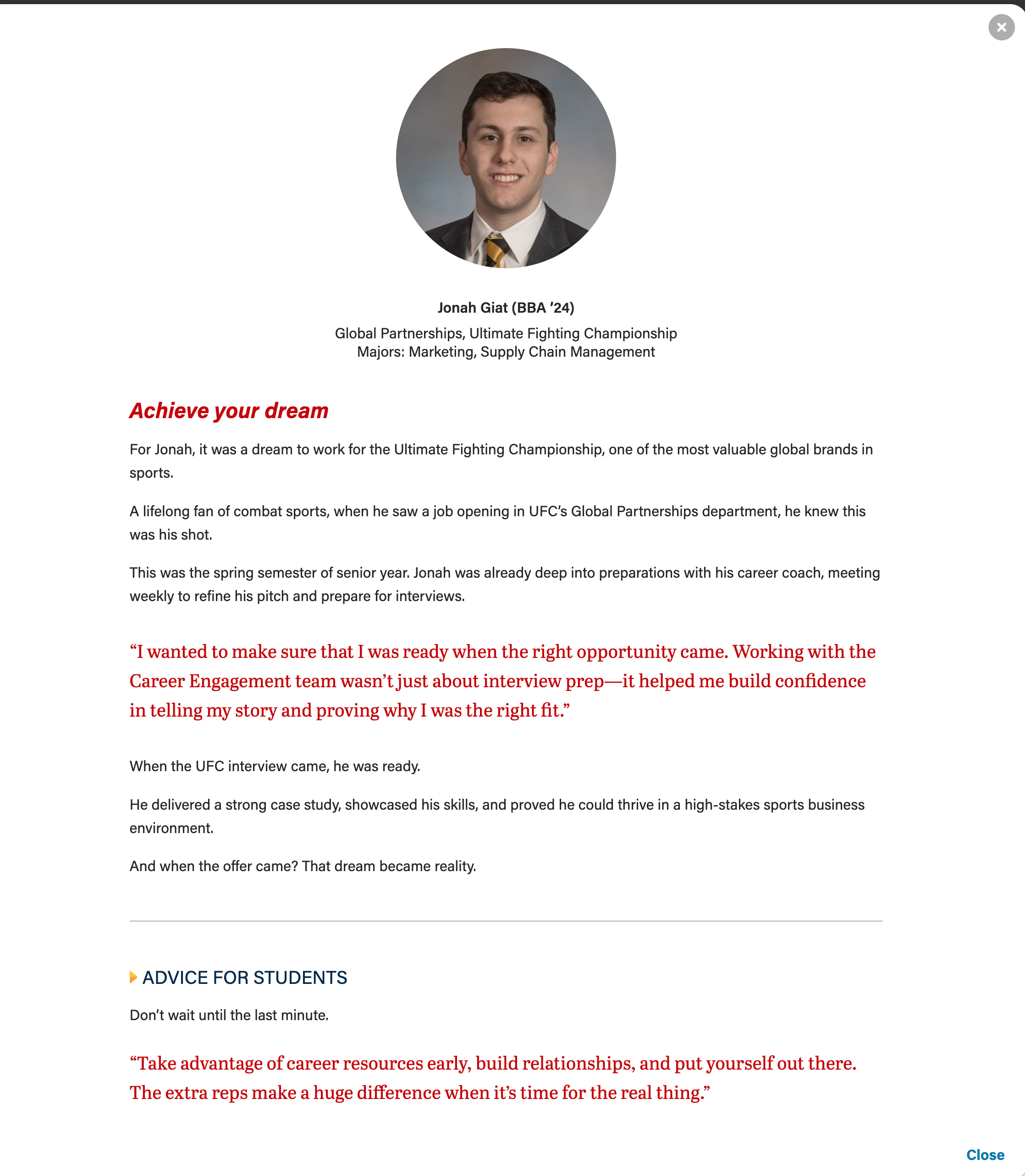
Microtitle styles for subheads (with yellow triangle)
These styles can be used on any heading level.
<h3 class="microtitle mb-3"><img class="microtitle-arrow" alt="" src="/wp-content/uploads/2024/10/Two-toned-yellow-arrow-digital-100x164-1.png" width="9" height="15" aria-hidden="true" /> Subheading</h3>
Horizontal rule
<hr class="hr-gray my-5" />
Pull quote
Can adjust or remove "my-4" class if needed. Author and cite elements are optional.
<figure class="wsb-pullquote mx-0 my-4">
    <p class="quote">add quote here</p>
    <p class="author"><cite> add speaker name here</cite></p>
</figure>
Career Points (for T2L4)
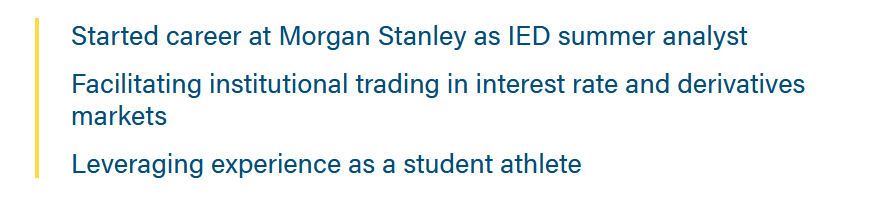
Just add the "career-points" class to any ul to get this styling.
Supporting Images
Staggered image collage
| Mixed image collage
|
|---|

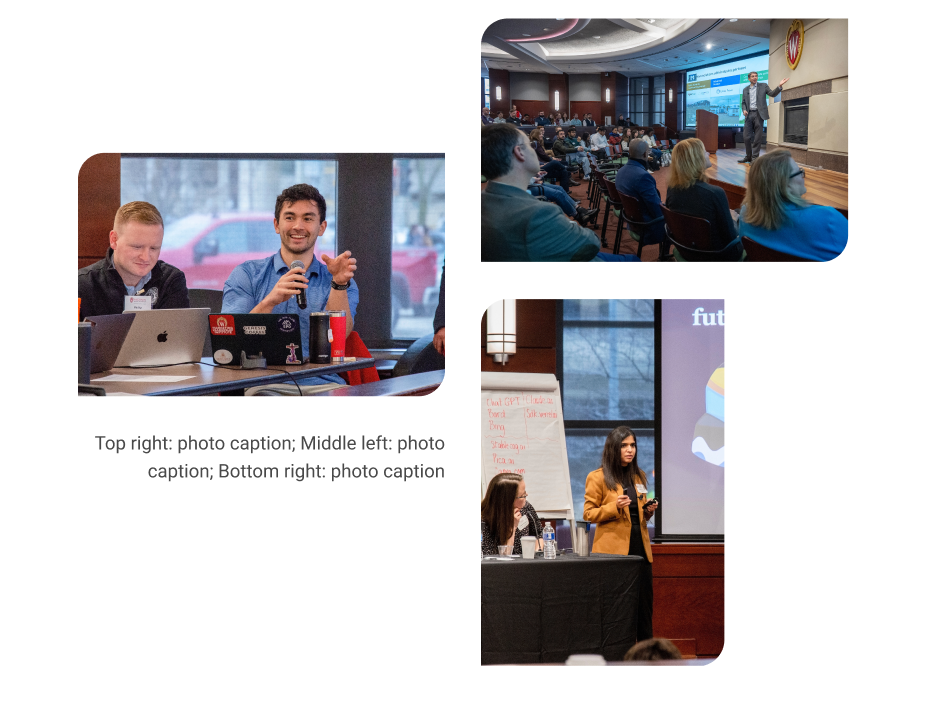
Staggered collage (3 vertical photos)
- Photos must be vertical. Recommended size: 700x1000px
- Image two and three are hidden for mobile screens.
- Can use a single caption for all three images for desktop. A mobile caption for just image one, since the others are not visible at that breakpoint.
Mixed collage (3 photos, 2 horizontal and 1 vertical)
- Image one and two must be horizontal, image three vertical.
- Image one and two size: 2400x1600px, smaller images with the same aspect ratio will also work, such as 512x341px or 1024x682px
- Image three size: 512x768px
- Image two and three are hidden for mobile screens.
- Can use a single caption for all three images for desktop. A mobile caption for just image one, since the others are not visible at that breakpoint.