
Eloqua documentation
Documentation for basic Eloqua how-tos can be found here: https://kb.wisc.edu/eloqua/
WSB specific documentation is hosted on wiki.wsb.wisc.edu.
How to Login to Eloqua:
- Open up the Firefox browser (you may need to download the most recent version). Eloqua is buggy with other browsers.
- Go to login.eloqua.com
- Ignore the sign in fields and select "Sign in with SSO or another account"
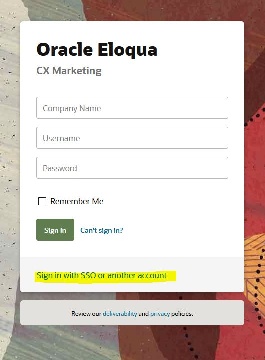
- In the "Company Name" field, type in "uwmadison" (not case sensitive) and click "Sign in"
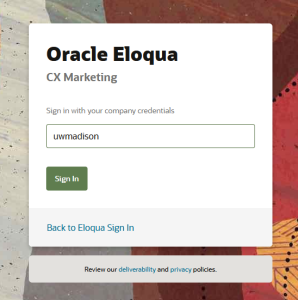
- It will redirect you to your typical wisc.edu login, where you can login as usual.
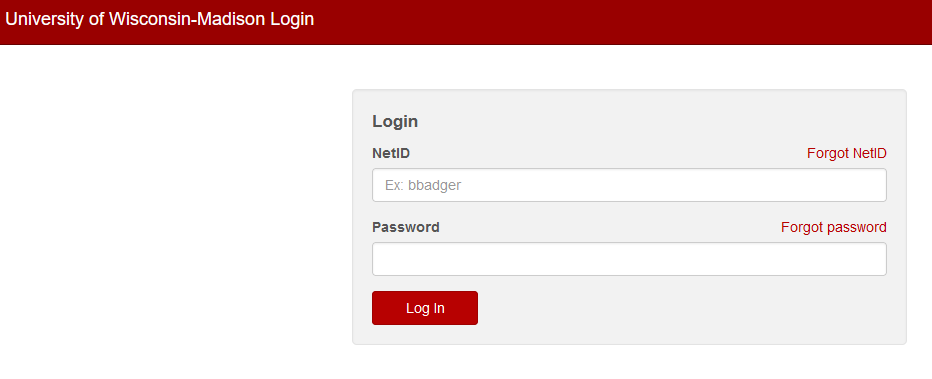
- If you get an error, you probably need to request Eloqua access
- You may see an Announcement page, you can ignore this and click "Continue"
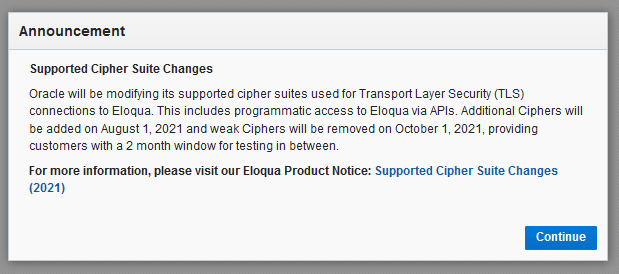
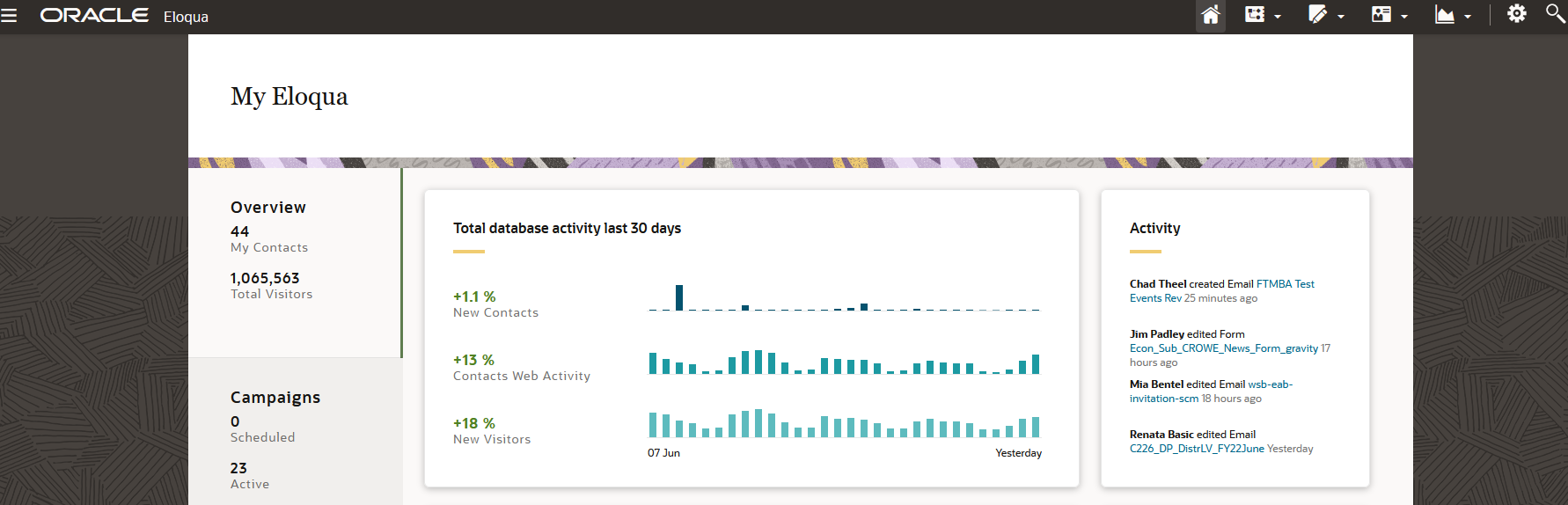
- Otherwise, you will be brought to the main Eloqua page. It will look something like this.
Building an Email in Eloqua
After you've logged in, you can start building emails!
Here is a recording of the training session for Eloqua Emails: Part 1
Download for contact uploads: wsb-example-contact-upload
Common Pitfalls/ Things to be careful of:
- When sending a test email, do not use the "Email Checker" option. It checks emails by clicking on all the links, which includes the unsubscribe button. Always select "HTML email" instead.
- The sender email must always end in "@explore.wisc.edu". Any others will cause the email to bounce, and your email will be marked as invalid.
- Make sure to select a folder whenever you upload/create anything (photos, emails, etc). If you add something to the root folder, please move it to the appropriate department folder afterwards.
- When creating an email, choose one of the templates for your specific department.
- When uploading contacts, be careful when entering info, since it will override the contact's info for all other groups (across UW-Madison)