
These instructions are for the following blogs:
- BBA blog
- Centers blogs
- Risk and Insurance Dept. blog
- RMI blog
- SHR Specialization blog
- Newsroom posts (also see this documentation for more specific details about newsroom posts)
Training and Access
You must receive training from the web team before you will be granted access to edit WSB blogs.
To request blog training, please have the blog owner email webteam@wsb.wisc.edu with your request and the following:
- Your first and last name
- Your netID (this is not a number)
- Your status (student worker, staff, or faculty)
- Which dept/center blog(s) you need access to edit
Login to WordPress
- Go to business.wisc.edu/wp-admin (bookmark this page for easy access).
- Click "Sign in with your Net ID" button. Login using Duo.
- Typing in your Net ID with the associated password will not work on this login page.
Add a New Blog Post
- Navigate to your specific blog in the left menu.
- If you don't see the blog, you will need to request access from the web team.
- Click Add New at the top of the page.
Adding your content
Title
- Add the title of the article in the first field, where it says "Add Title".
- Make sure this is spelled correctly because it will become part of the URL for your blog post.
Body Content
Headings
- We recommend you break up long blog posts with headings (and subheadings if appropriate).
- Headings are great for scanning and accessibility.
- Make sure to nest your headings in an organized way, like you would for an outline:
- Heading 1 (blog post title)
- First Heading 2
- Heading 3 (subsection of First Heading 2)
- Heading 3 (another subsection of First Heading 2)
- Second Heading 2
- Heading 3 (subsection of Second Heading 2)
- Heading 4 (subsection of Heading 3)
- Heading 3 (subsection of Second Heading 2)
- First Heading 2
- Heading 1 (blog post title)
- Make sure to nest your headings in an organized way, like you would for an outline:
Text/Copy
- You can ignore the message that says "Type / to choose a block" and click on it to add a cursor and start typing whatever you want. Or you can copy and paste your text from another document.
- You can also click the button with a plus sign to add a paragraph block or a heading. You may need to type "paragraph" or "heading" in the search bar to find the right block.
- Formatting your copy:
- Click on or highlight the text you want to format.
- A small box should appear above the selected copy.
- In this box, you can edit text alignment (use left or center), bold, underline, hyperlink, etc.
- You can choose any other text formatting options that make sense for your content, except text color. You should not change the text color because it won't match our brand colors.
Adding Media
- Images
- These instructions are for adding supporting images within your blog post. If you only want to add a cover or featured image, please see those instructions below.
- Image dimensions will vary. You should upload the original image (max size 2400px wide) so it will be high quality.
- WordPress creates different sizes of every image you upload and allows you to crop the image or resize it as necessary. You'll see instructions for this below.
- Adding/Selecting an Image
- Click the button with a plus sign and type "image" to search for the image block and select it. (Or hit the enter key to start a new line and type "/image" and select the option that pops up.)
- Select "Media Library"
- If you or a team member already uploaded the image to the WP media library, search for and select the image.
- Tip: When searching the media library, be sure to select "All Files" on the left side before you search so that WordPress looks through the entire media library. Alternatively, if you know which folder the image is in, you can drill down through the path of image folders to get to your image.
- Make sure the image has alt text describing what is in the photo, including all text, to meet accessibility requirements.
- Otherwise, click the Upload Files tab to add your image to the correct media library folder.
- Under Choose Folder, click on "Uncategorized". In the dropdown, look for "blogs" folder and then select your blog's folder below it.
- Tip: before selecting the Upload Files tab, find the folder you need to add images to in the Media Library tab and select it. When you navigate to the Upload Files tab, your folder will be selected for you.
- Drag and drop the image from your computer or click "Select Files" and find your image on your computer.
- Under Choose Folder, click on "Uncategorized". In the dropdown, look for "blogs" folder and then select your blog's folder below it.
- Once the image has loaded, you must add alt text describing what is in the image. This is an accessibility requirement for any image that provides readers important context (especially images that have text in them). If the image is purely decorative, you can leave the alt text blank.
- You can also add a caption if you like.
- Tip: Adding the caption to the image in the media library means it will display under the image every time it is used. If you might use the image multiple times and don't always want the caption displayed, you will need to add it to the image block in the event editor instead.
- If you or a team member already uploaded the image to the WP media library, search for and select the image.
- Select "Media Library"
- Click the button with a plus sign and type "image" to search for the image block and select it. (Or hit the enter key to start a new line and type "/image" and select the option that pops up.)
- Editing an Image
- Click on the image to see editing options.
- Above the image you can:
- choose an alignment option (left, center, right, text wrap) -- click the three horizontal lines (with the middle one being thicker than the others) in the toolbar. This will show you the different image alignment options.
- choose an alignment option (left, center, right, text wrap) -- click the three horizontal lines (with the middle one being thicker than the others) in the toolbar. This will show you the different image alignment options.
- Above the image you can:
- Click on the image to see editing options.
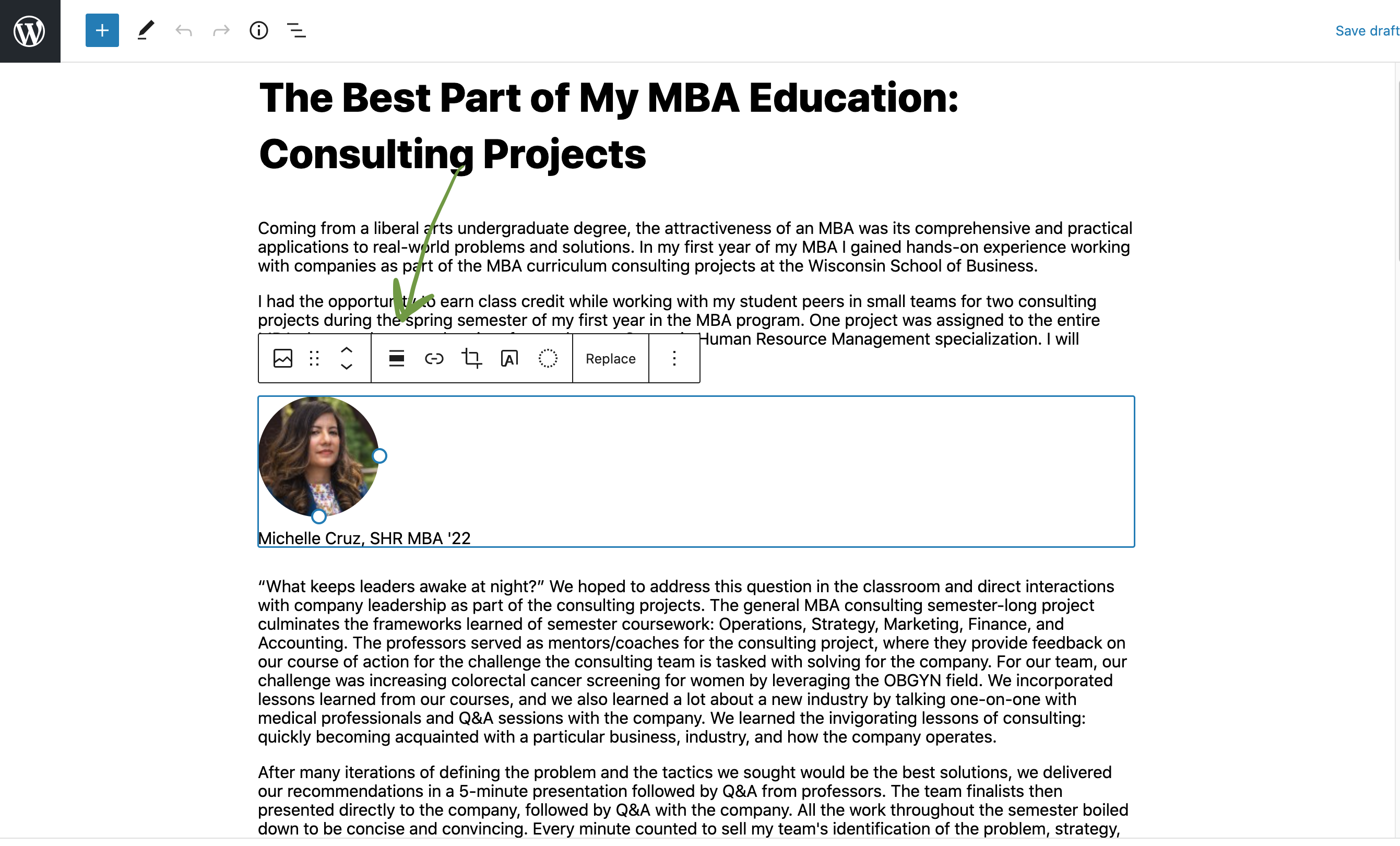
- crop the image
- add a hyperlink to the image
- move the image to a higher or lower position on the page
- On the right side of the screen you can:
- add alt text (remember this is required for every photo)
- edit the image size (select a predetermined size created by WordPress or reduce the size)
- Make sure you don't stretch or squash the image. You can adjust height and width but must keep their proportions the same. If you need the proportions to be different, you have to crop the image. (see above)
- Below the image you can add an optional caption. (This is the recommended location for adding a caption, if you would like one displayed.)
- Deleting an Image
- Use one of the following methods:
- From a blog post, click on an image block and click "replace" if you already have an image added to the block. From there, find the image to delete and click "Delete permanently" (this will be under the image on the right side of the screen).
- Go to the WP login dashboard and click Media in the left side menu. Find your image by searching or going through the folders and hover over it. Click "Delete permanently".
- Use one of the following methods:
- Videos
- You will need to make sure the video is uploaded to Youtube before following these steps.
- Click the button with a plus sign
- Search "Youtube" in the pop-up window and select the Youtube block
- Add the link to the video you want to embed.
- You will need to make sure the video is uploaded to Youtube before following these steps.
Additional Features
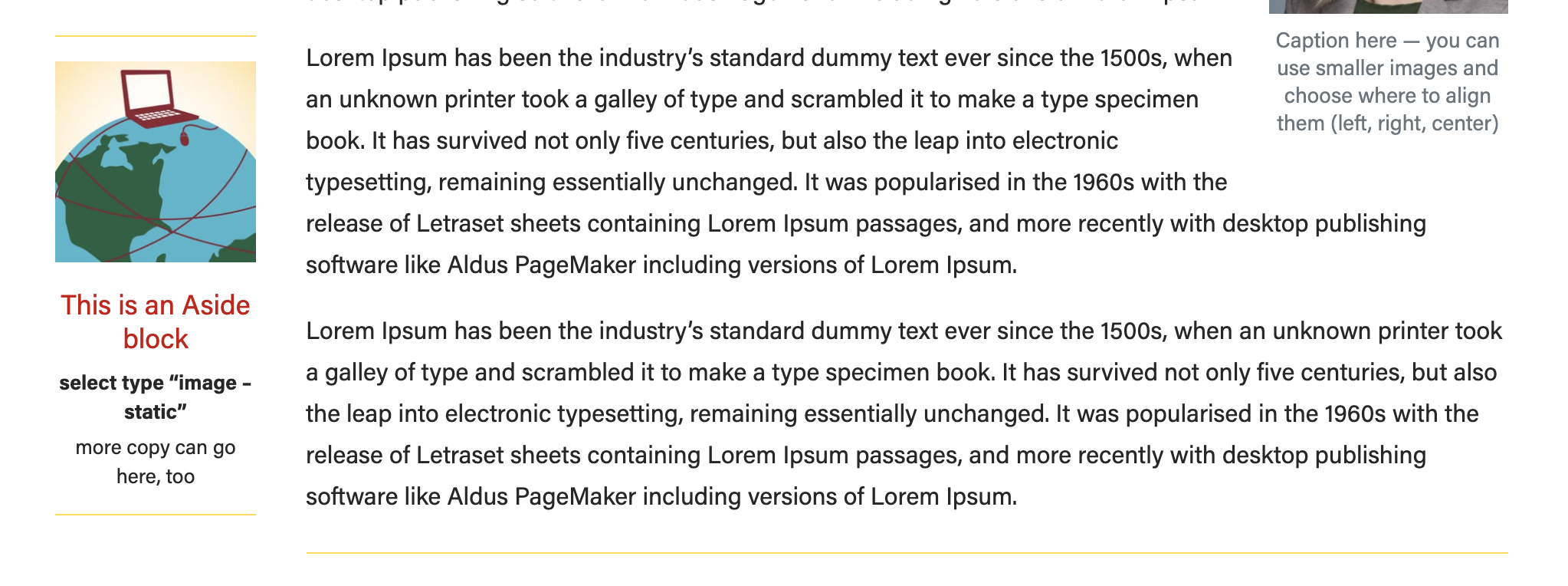
- Aside callouts
- Click the plus sign button or type a forward slash and search for "aside".
- Select the aside callout block.
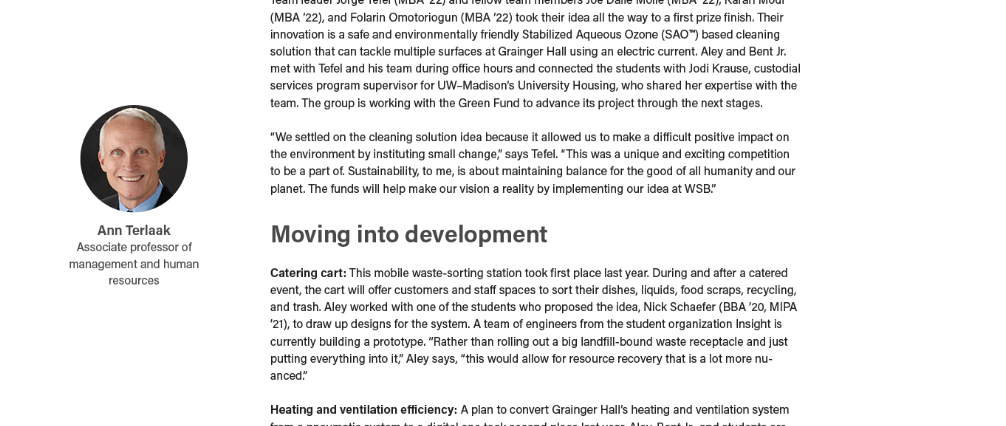
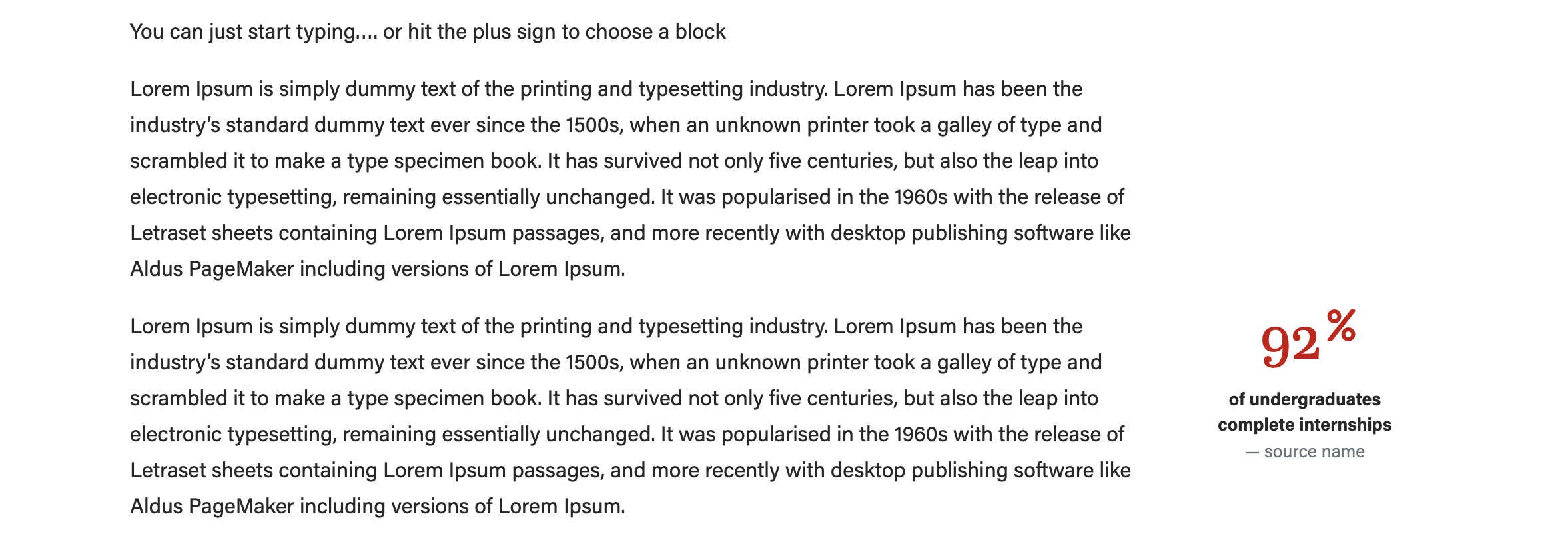
- Select which type of aside block you need. When you change the type of aside, different fields will pop up, so be sure to choose the type first.
- Image - statistic (intended for use with an icon)
- Image - person
- Ranking (no image)
- Image - statistic (intended for use with an icon)
- Add the image (if applicable) and copy. We recommend using a square image for this block. The "image - person" layout will crop your image to a circle for you.
- Be sure to preview your content to make sure the aside is not overlapping with footer content on the page
- Click Preview > Preview in a new tab
- If the aside is overlapping other content, move the aside block up higher on the page.
Meta - Center's Post
These are all optional fields.
- Subtitle
- appears below the post title and above the author and featured image
- Author override
- Author defaults to your name (the person making the post). If you want it to be someone else, say your department or center, put that name here.
- Photography credit
- Add photographer's name here if you want to provide a photography credit for all images in your post.
- Hide featured image
- Check if you want to hide the featured image on the actual blog post.
- If unchecked, the featured image will appear at the top of your blog post and in the listing of blog posts.
- If checked, the featured image will only be displayed in the listing of multiple blog posts.
- Check if you want to hide the featured image on the actual blog post.
Yoast SEO Premium (bottom section)
You can ignore this section.
Right-hand menu options
- Categories (optional)
- Be sure Uncategorized is unchecked and pick the category your post falls under.
- Category options vary for each blog. Make sure to follow our blog category and tag standards.
- Be sure Uncategorized is unchecked and pick the category your post falls under.
- Post Tags (optional)
- Add your tag(s).
- Tag options vary for each blog. Make sure to follow our blog category and tag standards.
- Add your tag(s).
- Featured Image (recommended)
- Featured images must be high resolution, jpg or png files, and 2400 pixels (px) wide, and between 1500 and 1700px tall.
- Click Set Featured Image.
- Follow instructions above for adding images to the media library.
Publishing
- On upper right side, click Publish to make your post public.
- Other options:
- If you need to leave the page and come back before you publish the post, click Save Draft.
- To see what your post will look like, click Preview, then Preview in a New Tab
- If you want to set a later time for the post to publish, click "Immediately" and set the day and time. You can also backdate posts if want them to appear in a certain order in your blog listing. Blog articles are listed in reverse chronological order.
Edit an Existing Blog Post
- Navigate to your blog in the left menu.
- Find the post you want to edit in the list of posts or search for it. Click on the name of the post to edit.
- Make your changes and be sure to click Publish in the top right corner to make those changes live.
A Note on Cross-posting
As of the launch of the new website (business.wisc.edu) in August 2021, you can no longer cross-post blog posts to multiple blogs. Cross-posting is bad for search engine optimization (SEO) because it creates duplicate content on our website, splits up traffic to the post, and lowers the ranking of our content in search results.