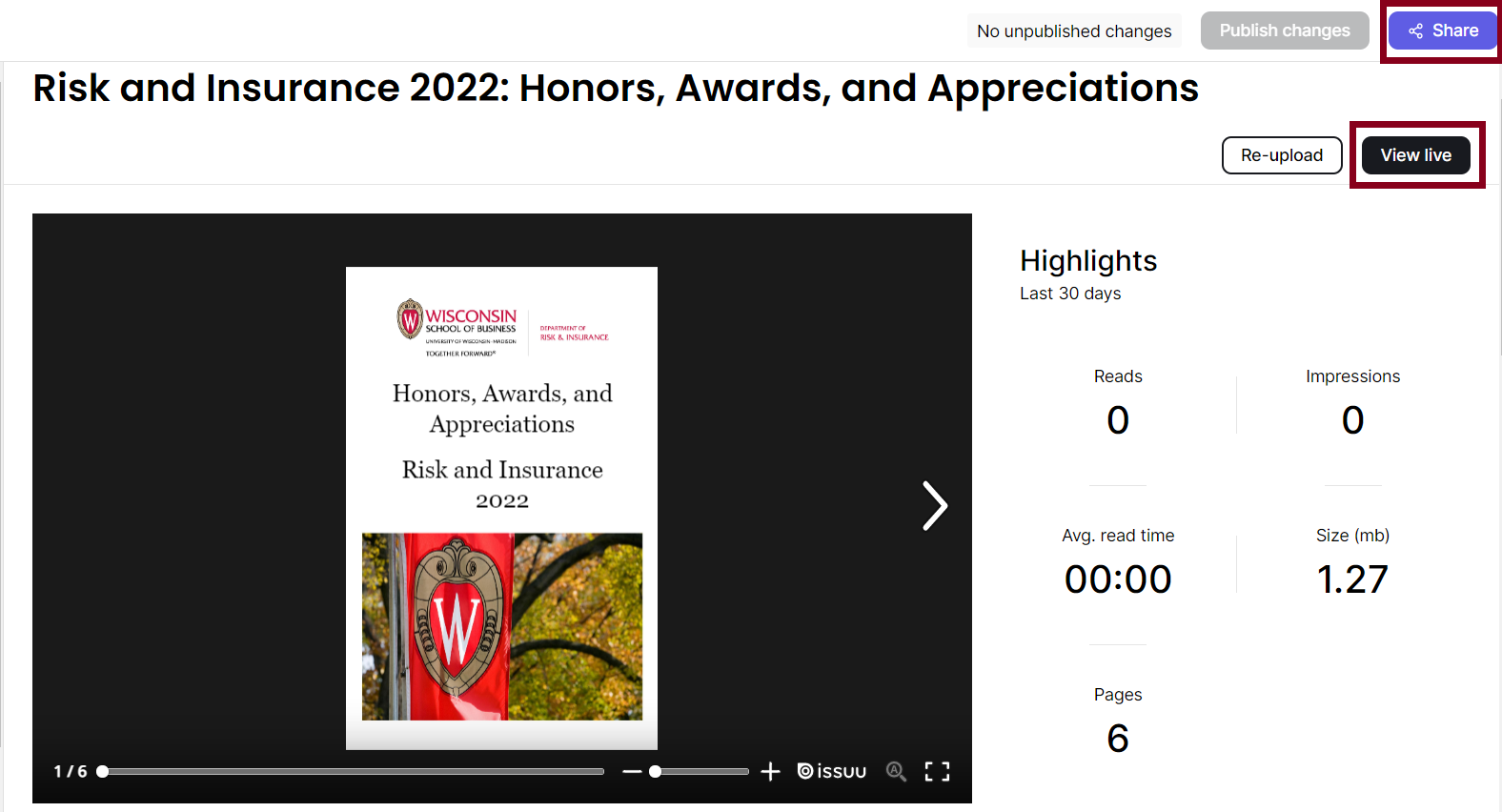
This article details how to add a new WSB publication to Issuu.
Note: For Trifold Brochures
PhD example of a trifold brochure in Issuu
The individual panels need to be individual pages to be uploaded to Issuu. This can be done by setting it up in Publisher with the page dimensions the size of each panel and exporting it as a multi-page PDF. If you would prefer not to create the brochure that way, you can use directions here to crop the PDF into individual pages: https://acrobat.adobe.com/us/en/acrobat/how-to/crop-pdf.html.
- Login to issuu.com using LastPass.
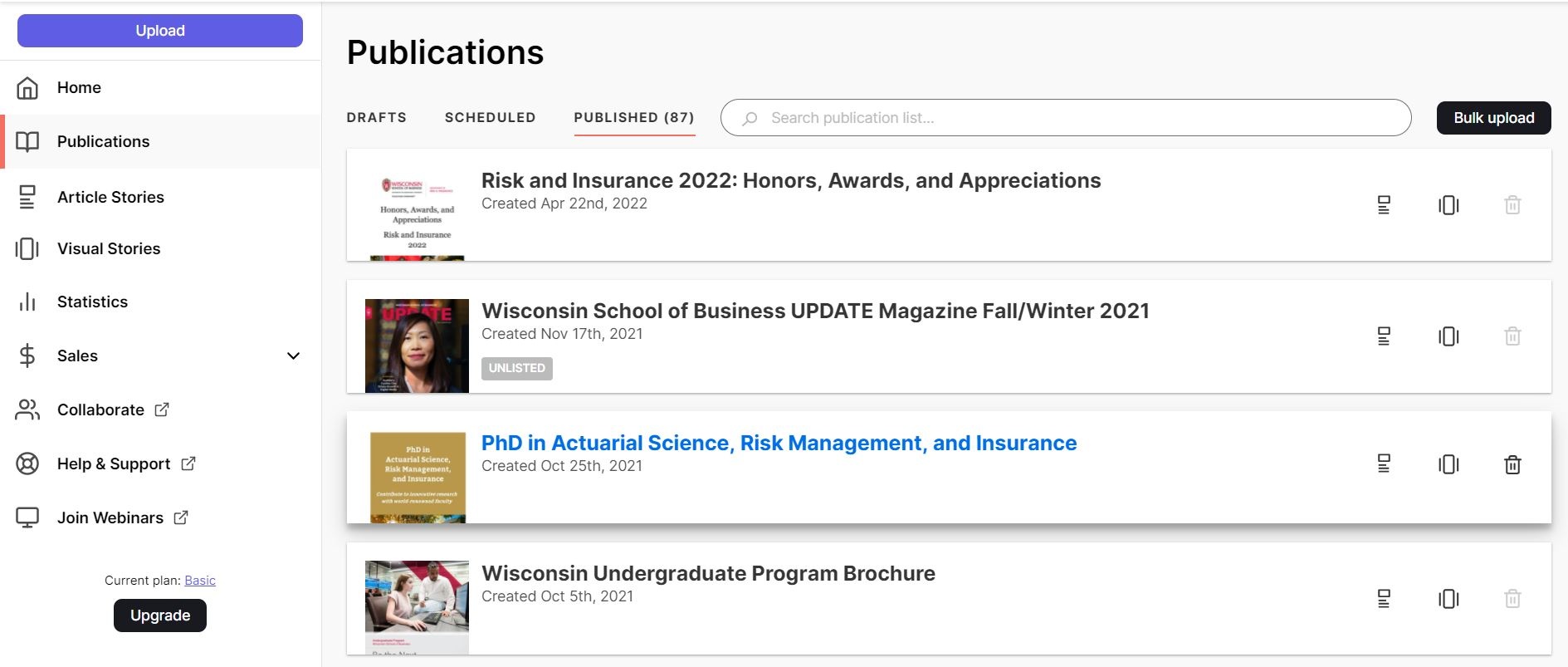
- To upload a PDF, click on Publications, then the Upload button.
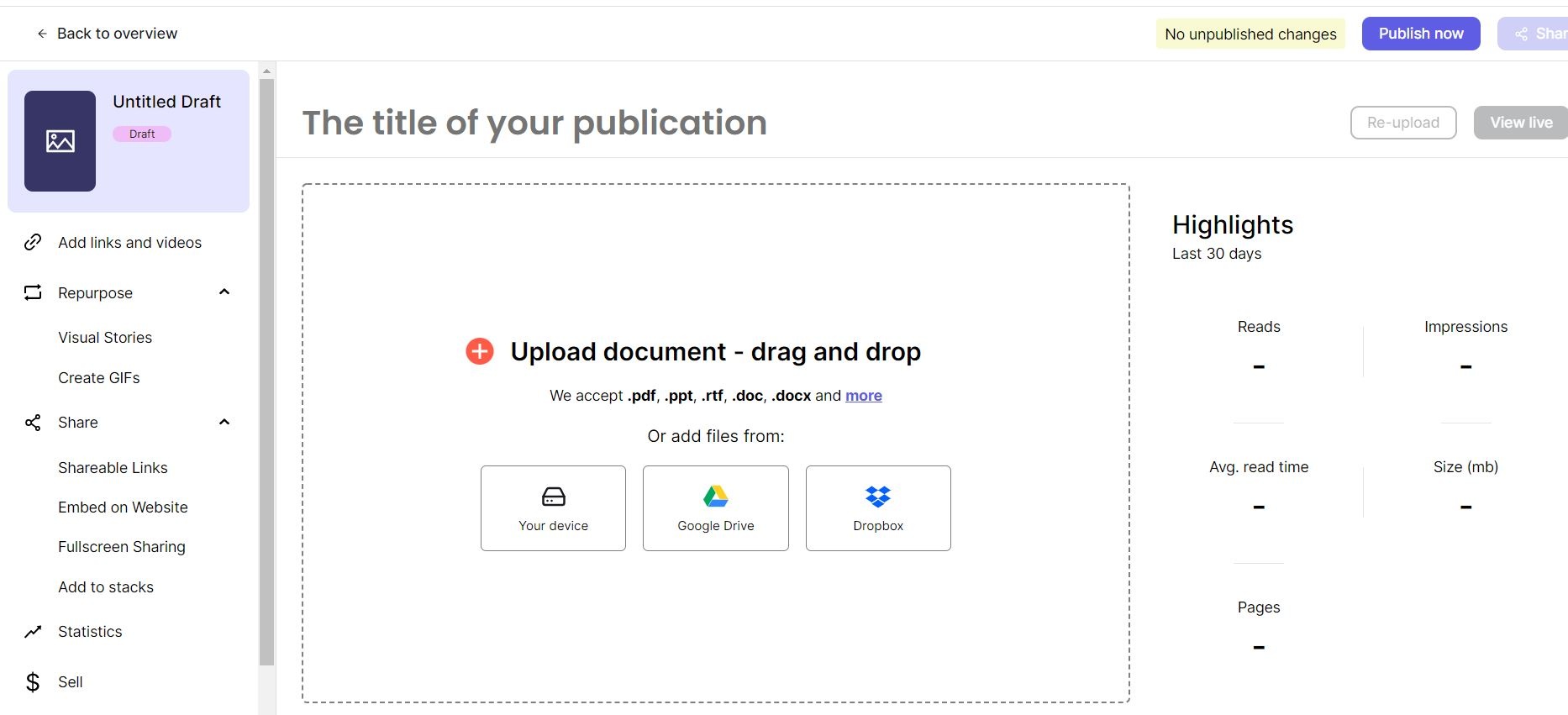
- Drag and drop or upload the PDF into Issuu.
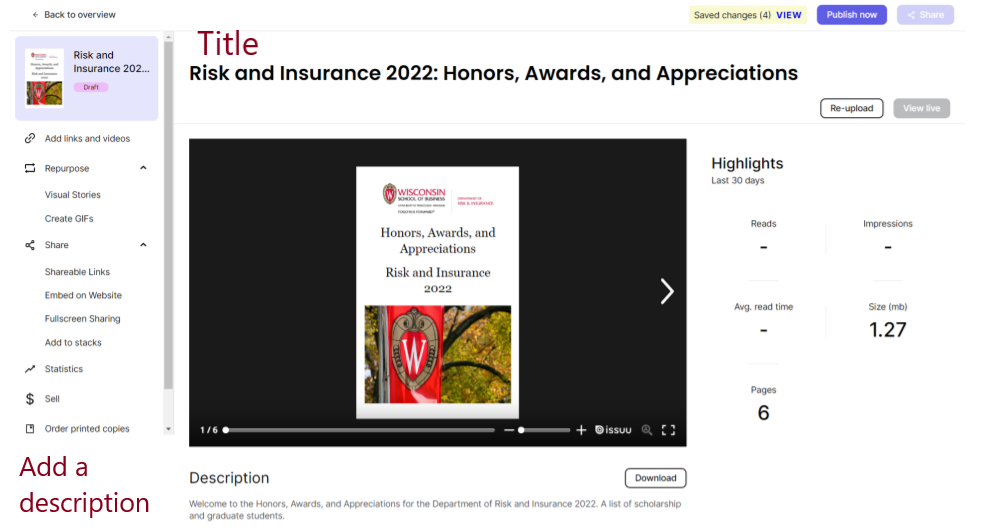
4. Add the Title and Description for the publication using settings similar to a previous publication.
- Example: Risk and Insurance 2022: Honors, Awards, and Appreciations
- Title: Risk and Insurance 2022: Honors, Awards, and Appreciations
- Description: Welcome to the Honors, Awards, and Appreciations for the Department of Risk and Insurance 2022. A list of scholarship and graduate students.
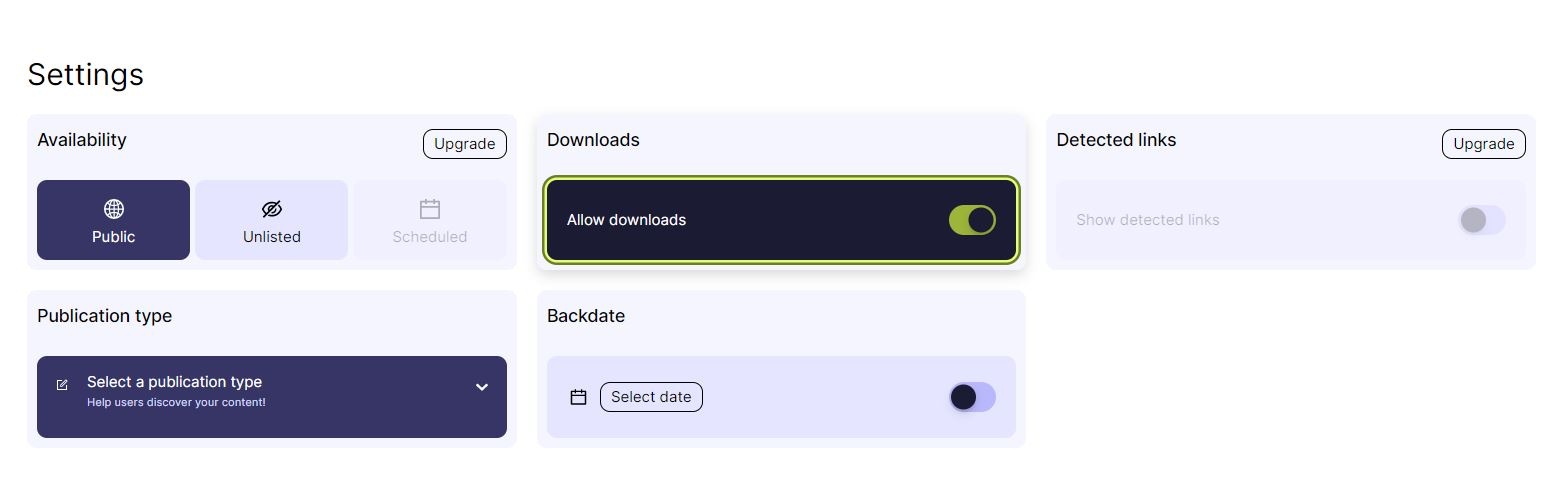
5. Choose the following settings:
- Type: Editorial
- Availability: Public
- Downloads: Allow Downloads (if necessary)
6. Click the Publish Now button.
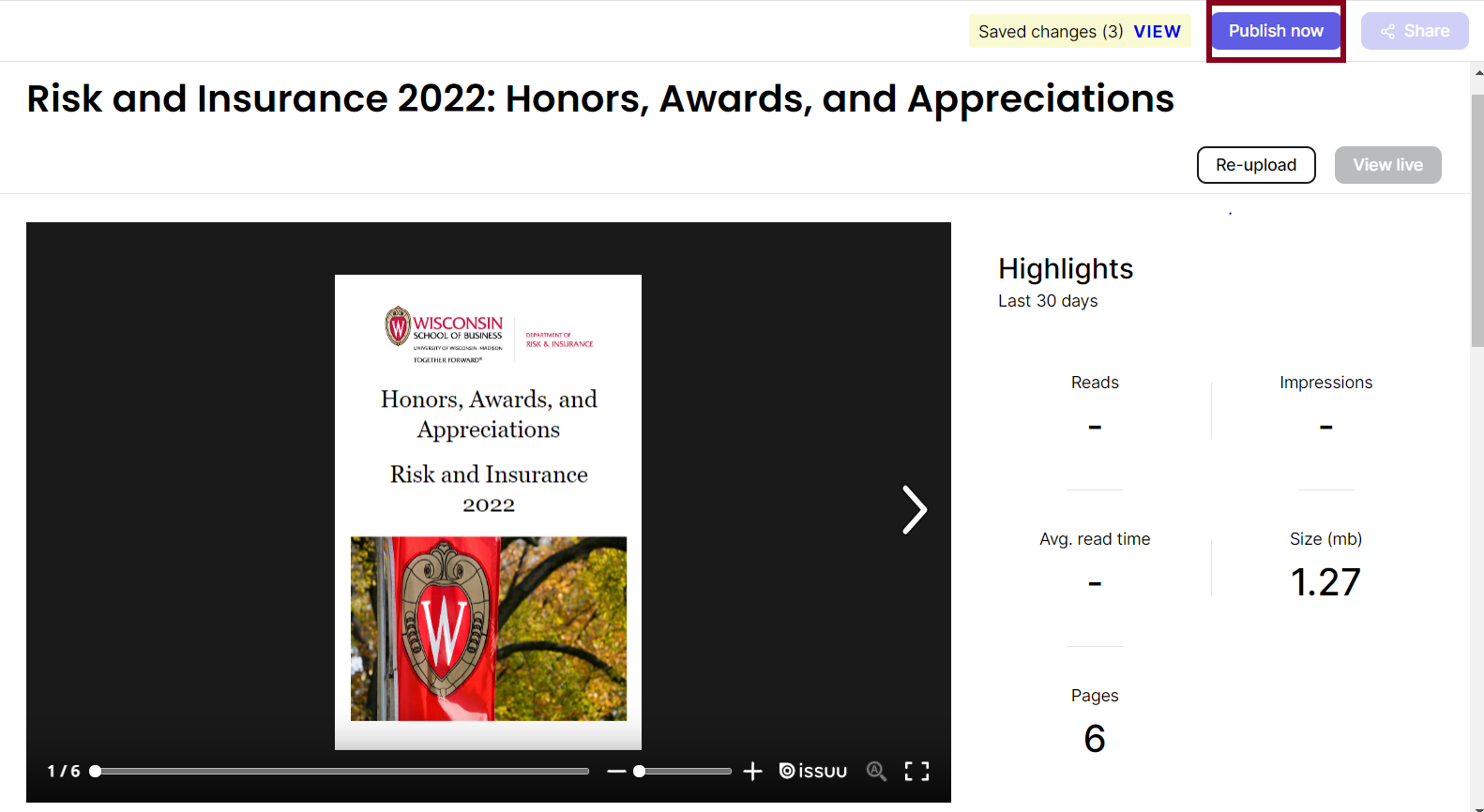
7. Once published, you can view the Issuu by copying the shareable link or selecting the View Live button.