Images are an important element to make your email more engaging. Follow our guidelines below to ensure you use them as effectively as possible.
Text & Images
Alt Text: required for accessibility
Alt text, aka alternative text, describes in words the non-text elements of a webpage or document, such as photos, drawings or charts. All photos in your email must have alt text.
After you've inserted a photo into the email, select it, and type into the alt text field in the left sidebar.
Tips for writing alt text:
- Be brief. Provide enough information for users to enjoy the image and act on the information it provides, the same way a vision-abled user would. Make it a sentence (100 characters) or less and avoid redundant words like “photo of,” “image of,” “screenshot of.”
- If the image is a headshot, the person's name is sufficient.
- Be contextual. Consider how you are using the image in the context of your email, and provide the information
- Include any relevant text in the image. If the image has text in it, include it in your alt text. If there is more than one sentence of text in your image, make sure to include that text outside of the image, somewhere in your email.
- Examples:
- "aerial view of Grainger Hall"
- "Bascom Hall in winter"
- "professor John Doe lectures on a stage"
- "students discuss around round tables"
- "Grainger logo"
Image to text ratio in emails
Spammers use images to try to hide suspicious text from spam filters, so most spam filters will remove any emails that do not have enough text relative to images.
To avoid getting filtered out, have 60%-80% of your email be text.
Do not put the bulk of information in your email in an image, such as in a flier. Fliers are designed for print, not email, are not accessible, and are not mobile-friendly.
- Instead, upload the images used in your flier separately, and add text elements around it to create a similar effect.
- Contact the web team if you need assistance with the design of your email.
Image Size
Keep your images between 300px-1200px wide, depending on how much space they take up in the email. Eloqua emails are 600px wide on desktop, so full width images should be between 600-1200px wide. Images that take up half the width or less on an email should be 300-600px wide.
- We recommend at least 300px so that when the image is full width on mobile, it will not be blurry/grainy.
- Check the file size of your image before uploading. Keep images under 300KB, and ideally under 200KB in file size. Why? Large images make it more likely for your emails to get removed by spam filters, cost more data to load (especially an issue for mobile users), and slows down the speed at which an email loads. Users are less likely to engage with or read an email if the photos take more than a second to load.
How to decrease image file size
You can don't need fancy software to do these basic edits, most computers have built-in editors.
The following instructions are for the Photos app in Windows 10 or 11, which should open by default whenever you open a photo on your computer.
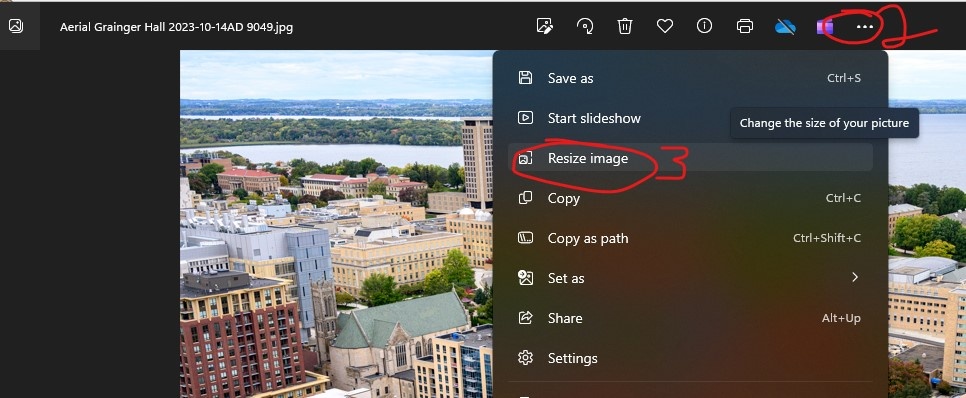
- Open your photo
- Click the three dots (right most option in the middle-top menu)
- Click "resize image"
- Change the width of your image to 1200px or less. The height will automatically adjust to be proportional to the width.
- Adjust the quality of your image by clicking and dragging the slider.
- Optional: Change the file type to JPG, since JPG files are generally smaller than other image types. (You cannot do this if you have transparency in the image)
- You will see underneath the slider info for the "Current" image vs the "New" image, which will tell you how many KB the file size of the image is. If it's under 300KB, you are good to go!
- If it's not small enough, you can also run your image through an image optimizer like tinypng.
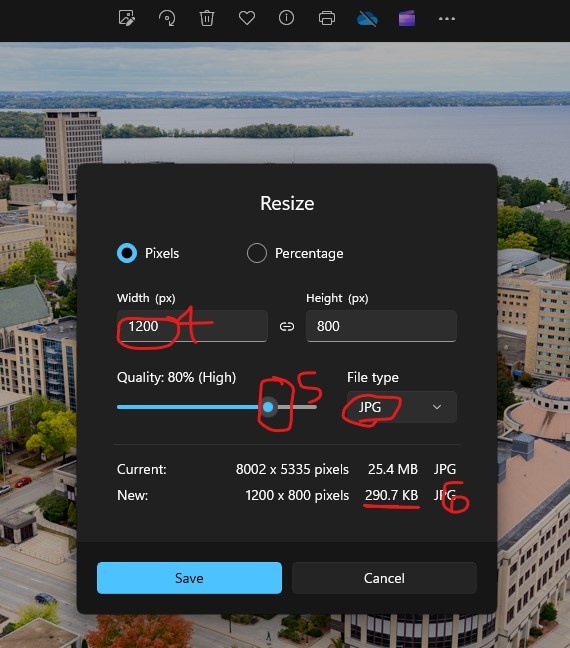
- Click "Save"