This page is intended to provide the instructions on how to process records from the Constituent Staging page table that have a Status of "Suspended".
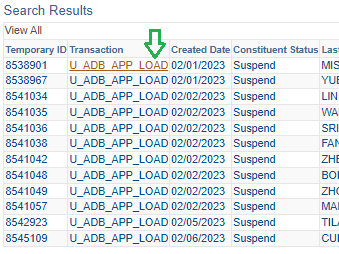
- Click on a link on the row of the record to review
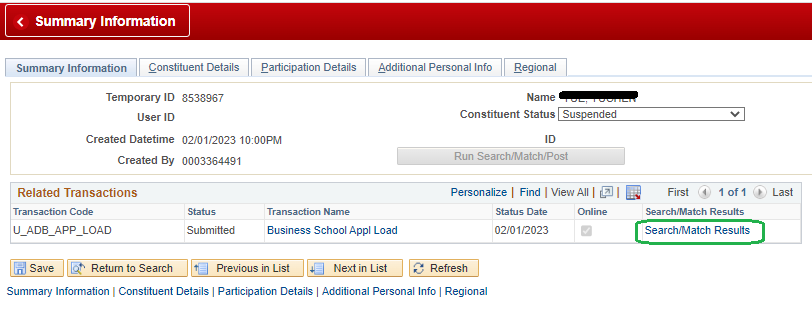
- Click on "Search/Match Results"
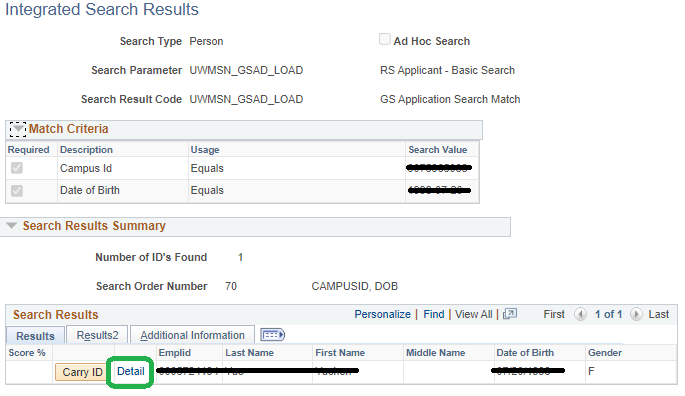
- Review the criteria and values (e.g. below: CampusID and DoB) used as well as the User records that matched (in this example, only 1). Compare this with the Contact information in the LRM, e.g. email, address, phone number, etc. to determine if there is a match or how many matches, etc. Click on "Detail" for more information like "Biographical Details" and "Addresses"
- Note that in some cases, e.g. previous applicant, the LRM may already have the EmplId on the Contact record as "SIS ID" (field 'wsob_sisid', for more info see contact in the LRM Data Dictionary)
- Next steps
- Scenario 1: True duplicates. More than one record that has essentially the same information, BUT with different EmplId values. Contact Judy Garland and ignore remaining steps here.
- Scenario 2: Duplicates, but with the same EmplId. Determine which record is the most accurate or at least the one that you are going to proceed with. Move to Step 5
- Scenario 3: Only one record that looks to be a match. Move to Step 5
- Scenario 4: None of the records are a match. Skip Step 5 and 6 and move to Step 7.
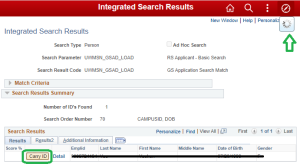
- If you have been able to determine which matched record should proceed as the primary record, click on "Carry ID" in the corresponding row. Watch for the spinning wheel to appear and disappear before proceeding.
- Going back to the Constituent Staging record detail page, update the 'Constituent Status' drop-down to 'Update ID' and click on the "Run Search/Match/Post" button. This basically tells the system to update the match to the ID you "carried" in the previous step, and to proceed in processing now that it knows exactly who to process the export for. Note the new value in the ID box (compare to screen-shot above in Step 2) - this should match the EmplId from Step 5.
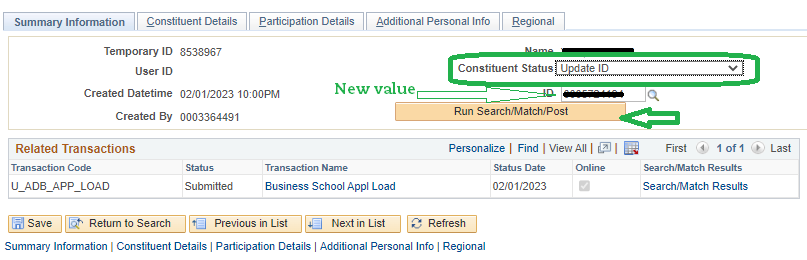
- The End. Step 7 is only for Scenario 4
- If there are no existing records that match, i.e. a new student to add to system, then skip Step 5 and then follow Step 6 except change the drop-down to 'Add New ID' before clicking on the "Run Search/Match/Post" button.