
Information entered in some categories will be shown to other entities as pre-populated!
Jump To:
- Profile
- Employment
- Roles
- Contact for Relationships
- Address, Phone, and Email
- Demographics
- Communications and Notes
- Preferences
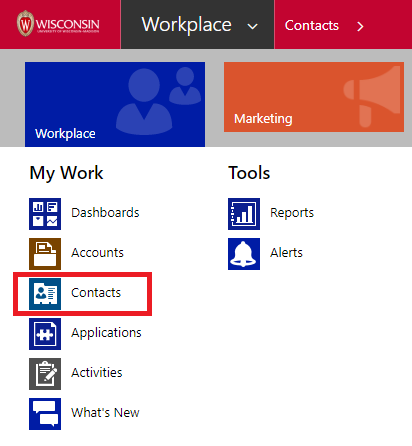
To access the Contact form for external relations functions, navigate to Contact.
Search for the contact you are looking for by using Last Name, First Name, as well as the asterisk wildcard. If the contact does not yet exist, select the new button at the top left of the screen.

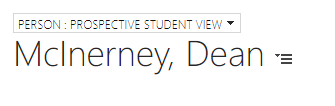
When first arriving at the form, the view may need to be changed from "Prospective Student View" to "External Relations." This can be down through the dropdown located above the name of the person record currently being viewed.

Profile
This section of the external relations person view shows basic information, such as email, first name, last name, phone preferred, preferred name, and former names.

Employment
This section of the person view information such as the contact's primary employer and their current title. It also presents a gridview with their employment history. To add to a person's employment history, add them as an employee to the employer account.

Roles
This section of the person external relations view shows the roles the person has. This includes their admissions roles and their external relations roles.
Admissions Roles:
- Prospective Student is a toggle for if the person has been marked as a potential student in the system.
- Prospect Sub-role is the current role of the person, such as if they are an applicant. More information on sub-roles can be found in this KB article.
- Student is a toggle for if they are a student or not.
External Relations Roles:
- Account Contact is a toggle for if the person has an account contact associated with them.
- Alumni is a field to flag if the person is an alumni of the university, WSB, or not an alumni.
- Individual Donor is to mark the tier the person fits within for donations.

Contact for Relationships
This section shows any accounts the person is associated with as a contact for the account.
To add a relationship to a person with an account, click on the plus sign to the right of the gridview, as shown in the screenshot above.

Enter in the required (contact, account, owner, and relationship) and available information in the form. Press save in the top left of the screen.
Address, Phone, and Email
This section contains other email address to contact the person, as well as their preferred and secondary phone. It also includes the address of the business they should be contacted from.

Demographics
This section outlines basic demographic information about the person, such as gender, date of birth, and business region.

Communications and Notes
This section displays any notes or emails sent to the contact. Use the instructions in the following KB article for adding notes and emails to a contact: Add an Activity to a Person Record

Preferences
This section includes information about preferred contact methods, and whether or not the contact allows bulk e-mail and phone calls.
