
-
Created by
 Mia Bentel, last updated on Mar 19, 2026
5 minute read
Mia Bentel, last updated on Mar 19, 2026
5 minute read
Everyone gets dozens, if not hundreds, of emails a day and they don't read most of them. While you can't force your audience to read your emails, there are some things you can do to improve outcomes.
The guide below includes just the basics. There are plenty of resources online, so do some research if you want to learn more!
Preview Text and Subject Line
Before you open an email, you'll see three things that help you decide if you're want to read it: 1) the Sender Name 2) the Subject Line and 3) the Preview Text.
Both the subject line and preview text are considered "prime real estate" because they are your best chance to grab your user's attention. Don't skip out on either!
Both the Preview Text and Subject Line can be edited in the left sidebar of Eloqua, under Email Settings
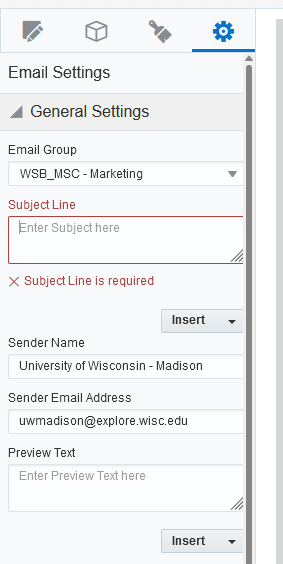
Subject Line
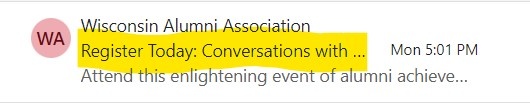
- Keep it short.
- Be specific and descriptive.
- Include deadlines or other important dates if you have any.
- Include the action you want your user to take
- Avoid special characters. Don't use more than 3 punctuation marks.
- Be honest about the contents of your email.
Preview Text
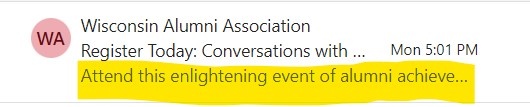
What is preview text?
Preview text, also known as "teaser text" or "snippets", is the text you see after the email subject line, before you open your email. When you're receiving a regular email from an individual, the preview text is just the first few words of your email. In Eloqua, you need to set preview text, because if you do not, it will default to "Trouble viewing this email? View on the web", since that is technically the first sentence of the email.
How do I write preview text?
- Do not repeat your subject line in your preview text. They are already displayed next to each other, so they should provide different information.
- If you aren't sure what to set as your preview text, start with the first "real" sentence of your email (whatever you have written after your greeting in the email body), then edit from there.
- It's okay if your preview text overlaps with copy in your email, since it is a preview of the email.
- Cut down any unnecessary text, especially from the beginning. Most email clients won't display more than the first 90 characters.
- Ask yourself what's important about your email. What does your audience need to know most? What might interest them?
- One option is to include an action you want your user to take:
- "Join fellow students..."
- "Learn more about..."
- "Come check out..."
- "Let's start improving..."
- Or, if your email is a newsletter, you may want to hint at the exciting content in your email
- "Tips to make the most of..."
- "Job postings, new events, and..."
- You can also have your preview text be an extension of your subject line.
- If your subject line is a question, your preview text can be the beginning of the answer
- If your subject line lists out the first topic of your email, your preview text could list the other topics.
- Take a look at your own email inbox for inspiration! What grabs your attention?
- Send test emails to yourself on multiple email platforms, and see how the subject line and preview text is displayed. Do they compliment each other? Are they short enough to not be cut off?
What time of day should I send my email?
There is no perfect time of day to send an email, but it's a good idea to take into account your audience when deciding when to send your email. Think about your audience and their schedule. For example, if you're sending primarily to work emails, an email at the beginning of the day, between 9-11am, or early afternoon, 1-2pm on weekdays is when 9-5 workers check their emails the most. If your audience is mostly students, you may be better off emailing them towards the end of the day, 5-6pm, when they are done with classes.
Ask your users
You can ask for feedback from all your users, but you also probably personally know or work with some of them. Ask what times work best for them!
Test different times
Try sending your email out at different times of day, or different times of the week, then review email analytics and see what worked well. The analytics dashboard on Eloqua tells you what time of day people click, so if most clicks occur several hours after you send your email, you should probably send it at a later time.
Avoid the spam filter
You can't control whether your email enters spam, but there are some best practices you can follow to make it less likely. Many of the guidelines in our documentation already take spam filters into account, so if you're following our best practices, you're already ahead of the game!
But if you're curious, here are the most common strategies to avoid spam filters:
- Keep your email file size under 100KB. This not only helps with avoiding spam, but also makes your email more accessible to those with limited internet connection.
- Check your email file size: 1) send yourself a test email 2) go to your inbox and right click your email 3) click "save as" 4) hover over your downloads and check the file size.
- Do not upload images that are too large in your email. Spam filters often remove emails that are too large in file size, and images are the biggest culprit.
- Avoid email attachments
- Do not use all caps, unnecessary special characters, or misspellings in your email, particularly in the subject line.
- Have more text than images in your email.
- Be consistent in your Sender Email Address.
What's a good open rate?
It depends on how many people you send your emails to, the kind of emails you send, and your audience. Generally, 20% is "good" open rate, but it's best to compare your open rates with past emails to see how you're doing.
How did my email perform?
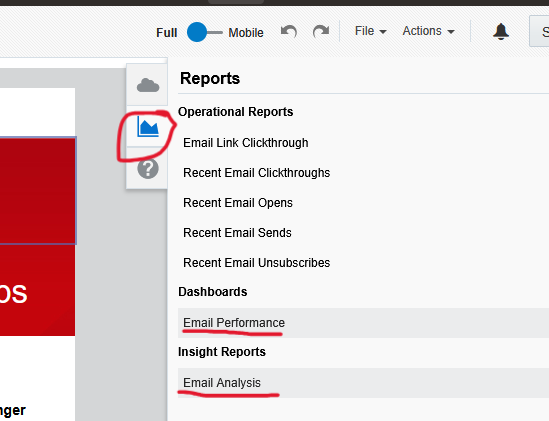
Eloqua has many complex email analytics information, but most basic information you'll need can be found by going to your email, and clicking the graph icon in the right sidebar. The "Email Performance" report has good at a glance info, and "Email Analysis" provides detailed tables with users and tracks opens, clicks, and other useful metrics.
If you are in need of more complex analytics information, check out the UW-wide eloqua knowledge base, or reach out to the marketing automation team at marketingautomation@wisc.edu.