
-
Created by
 Erica McConnaughey, last updated by mkcummins on Jul 23, 2026
6 minute read
Erica McConnaughey, last updated by mkcummins on Jul 23, 2026
6 minute read
General
- For designers and developers: use our standard set of font styles–avoid "one-offs" or different styles for individual blocks
- This means that an h3 heading should always use our standard h3 font size, color, etc.
All Caps
Avoid using all‑caps as it reduces readability and slows scanning. It works best when applied sparingly and paired with sufficient spacing and contrast.
All caps are harder to read because uniform letter shapes reduce word recognition.
Avoid using all caps for long headings, paragraphs, or instructions—reserve it for brief labels, buttons, or acronyms.
- All caps can feel like shouting in some contexts, so use it intentionally and with tone in mind.
- Ensure strong color contrast and adequate size, since all‑caps text can appear visually denser and heavier.
Recommended to increase letter‑spacing (tracking) slightly to improve legibility when all caps are necessary.
Font Size
- Use relative units (rem) so that users can magnify font-size as they want
- In general, do not go below 16px (1rem) for readability. Body copy must be at least 16px.
- Never go below 12px (.75rem)
- The WSB website never goes below 13px (.8333rem)
Headings
Headings should create a clear visual hierarchy that helps users scan, understand structure, and navigate content quickly. Effective headings balance clarity, consistency, and accessibility so users can grasp meaning at a glance.
Use the HTML heading elements (H1 → H2 → H3…) that reflect the content structure, not visual styling alone.
- Headings must go in numerical order on a page to provide content structure for users, SEO, AI, and screen readers.
- Example 1: can’t have an h2 nested under an h4
- Example 2: can't skip an h3 to nest an h4 right under an h2
- Headings must go in numerical order on a page to provide content structure for users, SEO, AI, and screen readers.
Visually differentiate heading levels with size, weight, and spacing, not color alone or decorative styles.
- Heading level is typically associated with font-size: the higher the heading level, the larger the font-size.
- Apply consistent heading styles across the entire site so users can rely on predictable patterns and quickly understand hierarchy.
Avoid styling that reduces readability—such as all caps, excessive italics, or low‑contrast colors.
Maintain consistent spacing above and below headings to support scannability and rhythm.
Italics
Use italics sparingly and for emphasis, not as a primary typographic style.
- Use italics only for emphasis, not as the default style for headings or large text blocks.
Avoid italicizing entire heading levels, since it reduces scannability and weakens visual hierarchy.
Keep italics short and infrequent, as long passages in italics are harder to read.
Ensure italics are not the sole indicator of meaning, especially for accessibility.
- Occasional, purposeful use of italics in headings is fine (such as for Trusted to Lead or other campaigns).
Lead text (also called introductory copy)
A short block of copy displayed under a heading that introduces a topic.
- Length: 2 lines or 160 characters max
- Lead text is displayed at a slightly larger font size than body copy.
Letter Spacing
This refers to the spacing between individual characters.
- Generally avoid changing this because it makes words harder to read.
- Do not go higher than 3%.
- The only place the WSB website uses letter spacing is 3% for microtitles (and microtitles are to be used sparingly).
Line Height
Line heights should create enough breathing room for the eye to track lines without losing place. Accessibility guidance favors slightly generous line spacing, especially for body text.
- Line height is measured as a multiplier of the font-size. So a line height of 1.6 for text at 16px font size means the line height = 1.6 x 16px (1rem) = 25.6px (or 1.6rem)
Recommendations
- 1.1–1.3 line height for headings
1.4-1.6 line height for body text (1.6 is our standard line height for body text)
- 1.2 or 1.3 line height for short, single-element content, such as a person's name, title, company, degree, major
- This keeps the wrapped lines visually connected
Add a small but consistent margin or padding between each distinct piece of information to create clear grouping
- we use .35rem or .5rem for spacing between elements with a font size of 1rem
- Example: text elements in directory profile cards
Tighter line heights reduce readability, especially on small screens or dense layouts.
Extra spacing improves comprehension for users with dyslexia or low vision.
Maintain consistent line height across similar text types to support predictable scanning.
Micro-titles
Short, descriptive labels used within a section to introduce a topic. They help users quickly scan and understand what a card or chunk of content is about.
- Length: 30 characters max (1-2 words)
- We have a consistent style for these across the website:
- 16px font size (13px if the micro-title appears inside a card)
- All caps
- Semibold (600 font weight)
- 3% letter spacing
- 140% line height
- color: gray-700 or #646569
Serif vs. San-serif
Sans‑serif fonts are preferred for digital interfaces because they remain clearer at small sizes and on varied screens. Serifs can still work well when used intentionally and with strong contrast and sizing.
- Avoid serif body text at small sizes, where details blur and reading slows.
- Serifs can be effective for large headings or brand‑driven typography.
Text Elements
- HTML text elements deliver the structure and meaning of content for users, SEO, AI, and screen readers.
- There is one style for each HTML text element. This consistency is helpful for users who are trying to understand the content hierarchy of a page.
- E.g. The h2 heading styles are red with a large font size. (There may be conditions where there are style variations, such as the h2 color is white if it’s on a red background.)
- Avoid mixing more than 2-3 text styles in the same section
- For example, when displaying a quote/testimonial, stick to 2-3 types of content with unique styling, such as a title, quote, and name.
- HTML text elements include:
- Headings <h1>, <h2>, <h3>, etc.
- Paragraph <p>
- Lists <ul> and <ol>
- List item <li>
- Quote <blockquote>
- Citation <cite>
Bulleted Lists
- Lists are a great way to make text more scannable and digestible. Instead of paragraphs, use lists when possible.
- Maximum 120 characters per bullet. Keep copy short. Each bullet should be a single phrase.
- Action-oriented phrases (starting with a verb) are a good way to connect with users.
Default style
The default style for bulleted lists has traditional round bullets. Use this style in most cases. No special code or styling required-- it's the default.
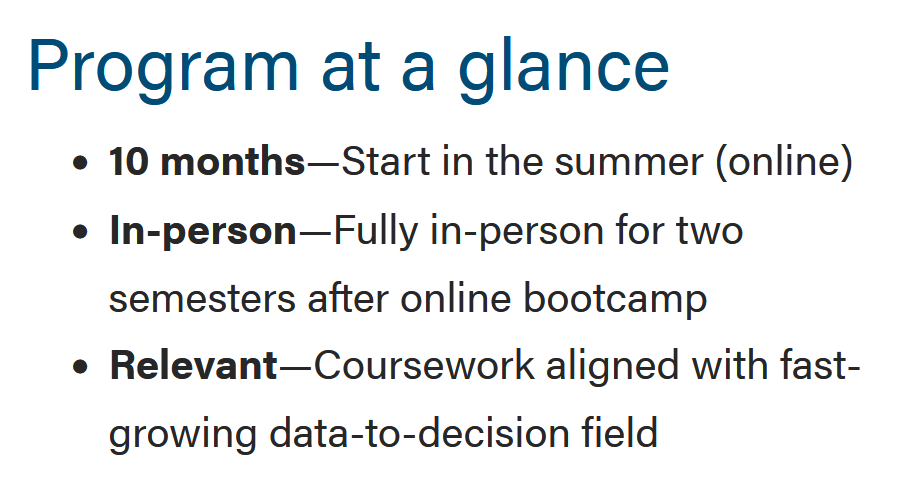
Fancy styles
There are times when we may want to use our fancy style to add visual interest. Fancy style contains two optional flourishes: a horizontal rule between list items and the WSB yellow triangle for the bullet. Use these sparingly, and only when there are 3 or fewer list items.
Fancy - Horizontal rule only (often used with bolded keyword)
- Bolded keyword should be one or two words max
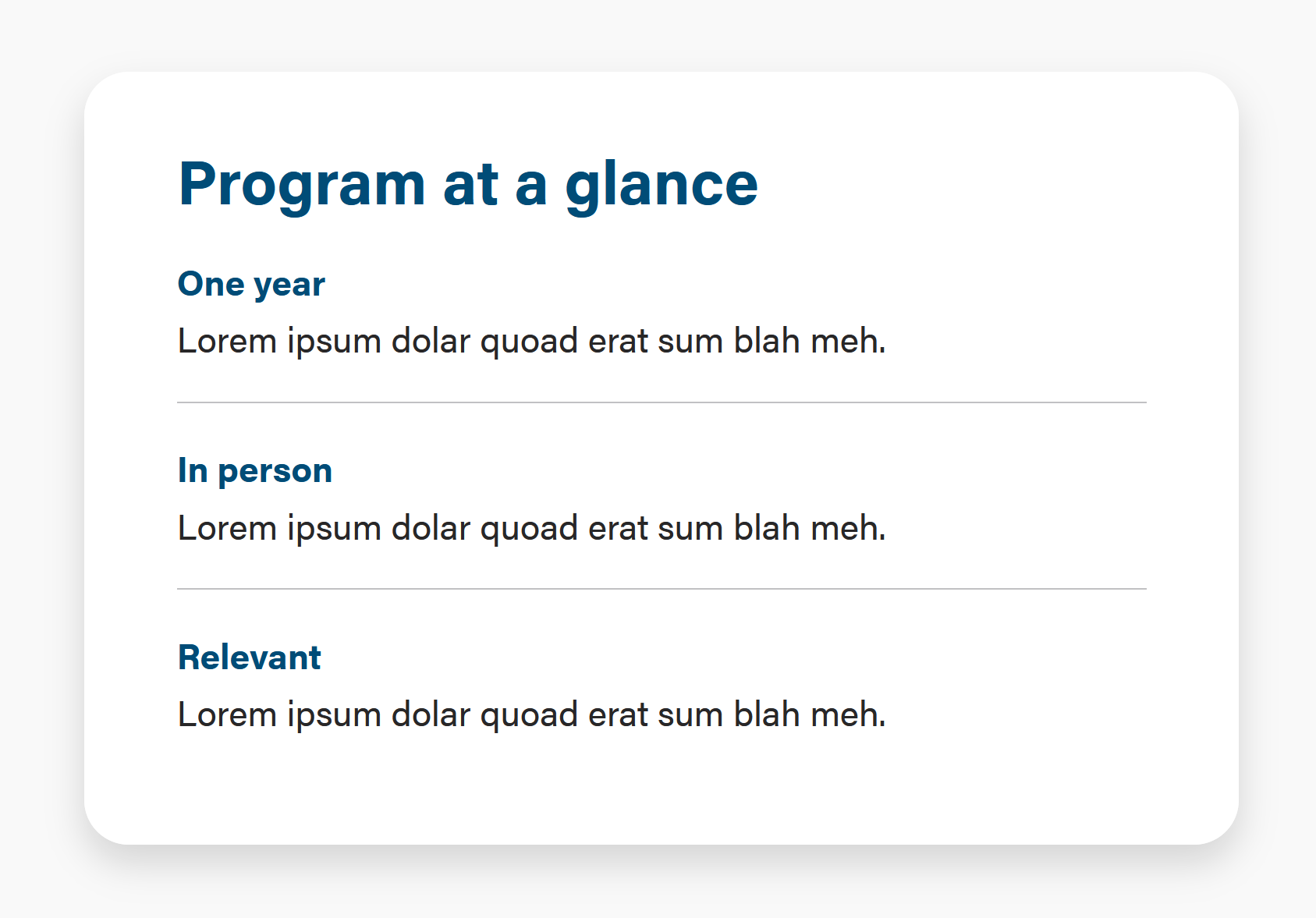
Implementation:
To the <ul> element, add Bootstrap class="list-unstyled;"
Add an <hr class="hr-gray"> after each list item, except for the last list item.
To achieve the font styles like the screenshot, apply them in the wysiwyg. Use <br>s to create line breaks if needed.
Fancy - Horizontal rule and yellow triangle bullet
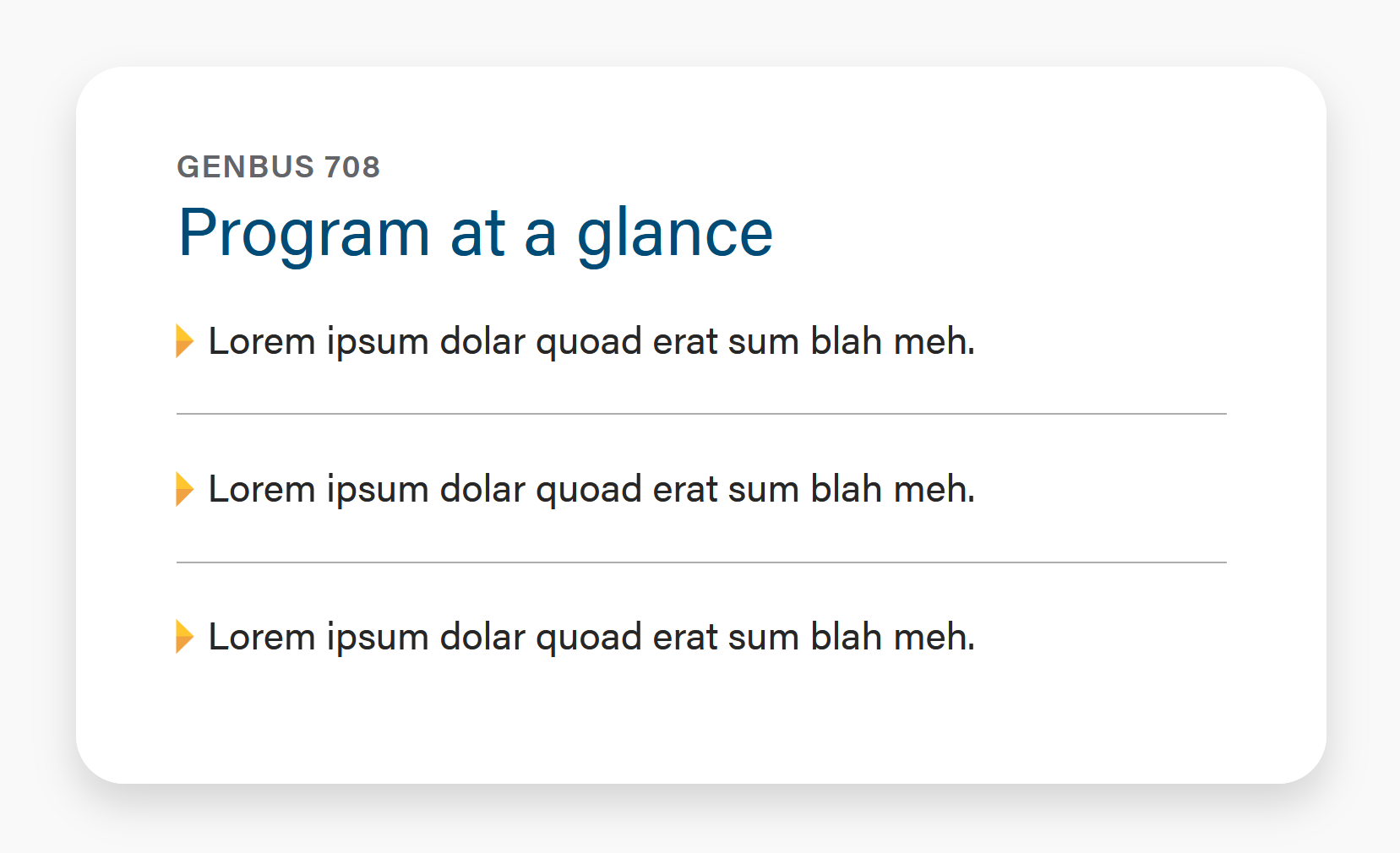
Implementation:
OK to have up to 4 items.
To the <ul> element, add Bootstrap class="list-unstyled;"
To each <li> element, add WSB class="wsb-triangle"
Add an <hr class="hr-gray"> after each list item, except for the last list item.