Reviewers from the Undergraduate and Pre-College programs review applications in the LRM individually. The program office analyst would download several views/reports from the LRM to contribute to its Master decision sheet:
- LRM application eligibility (BBA PB: Active Application Eligible)
- LRM active application ( BBA PB Active Application - for EXPORT to review file)
- Review Scores ( From the LRM dashboard, select BBA PB Review Dashboard_ALL)
The program office makes decisions after review score normalization and data analysis. Analysts would need to follow the steps below to create a review group, which has been recycled to upload scores back to the LRM applications to represent decisions.
Creating an Admissions Review Group
- Set applications to Ready-for-review (individually or in bulk)
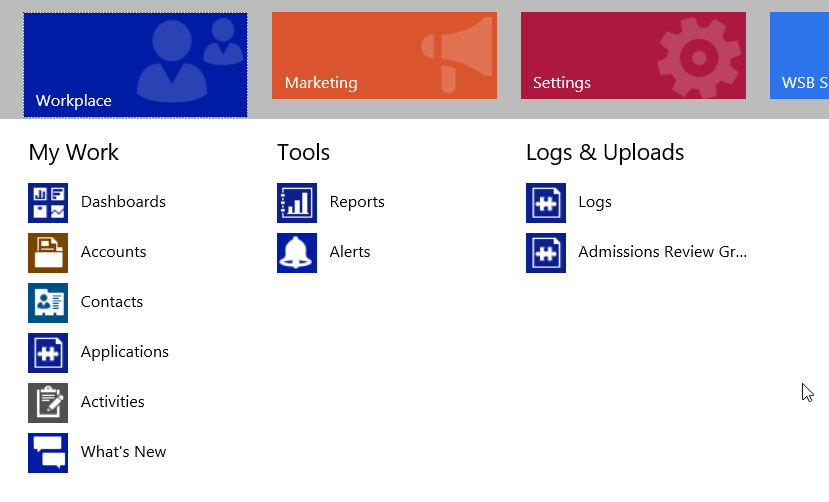
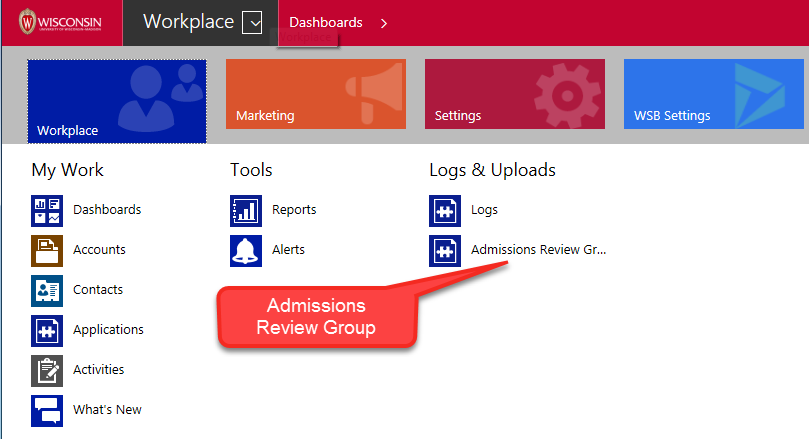
- Navigate to Workplace > Logs & Uploads > "Admissions Review Gr..."
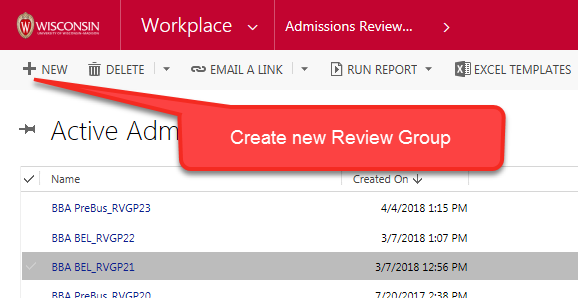
- Create a New Group:
- Click 'New'
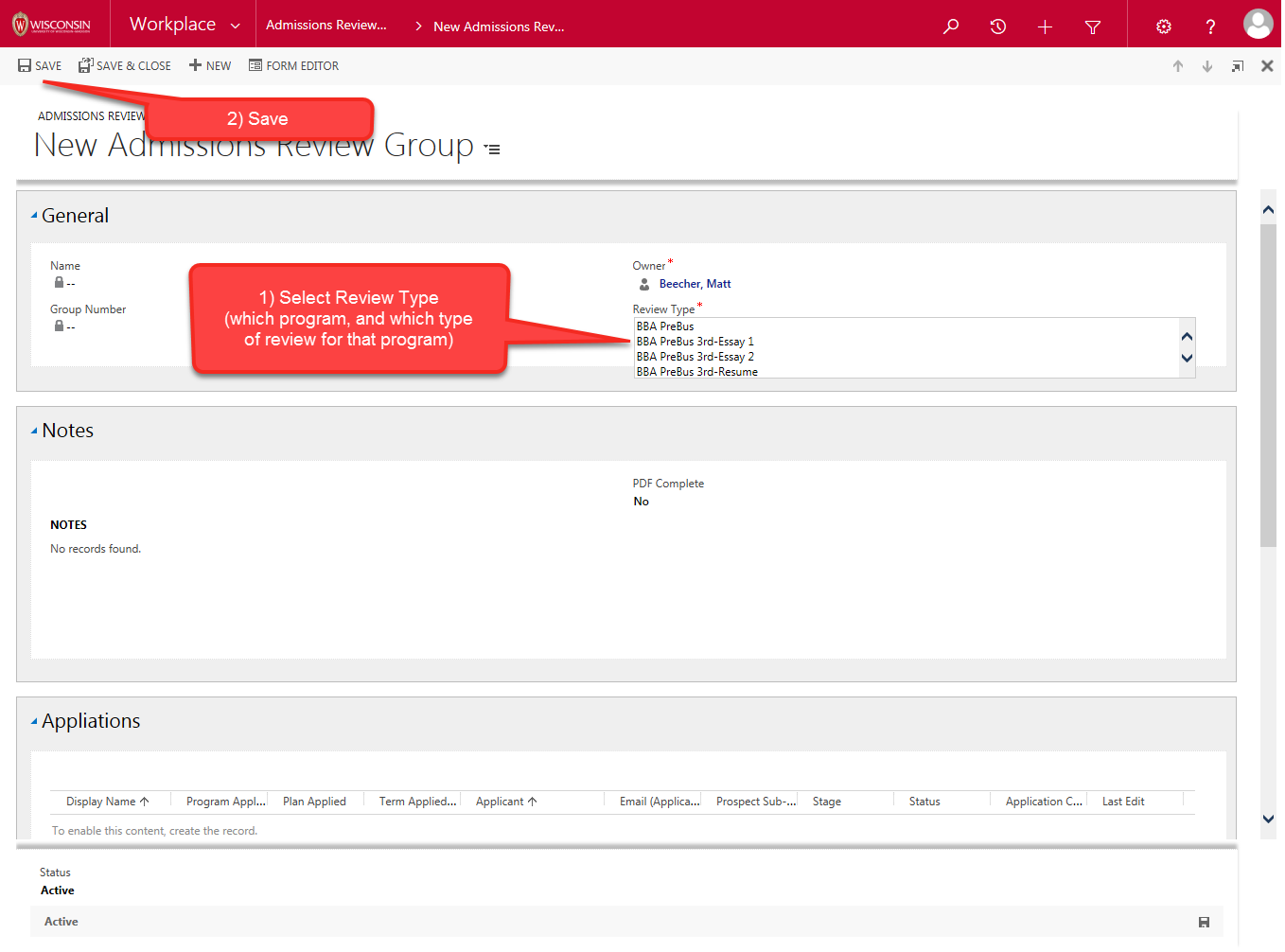
- Select the 'Review Type'. In general, all active applications associated with that Program set to Ready for Review and are not already associated with another Review Group will be associated with the new Review Group.
- Save the Group
- A plugin will
- Associate the applications with the review group (only visible in the Subgrid on the Group: this is an N:N connection, and is not visible on the Application)
- Create a CSV file of all of the applications, to be used for the review process; storing it on the Group in the 'Notes' section.
- A scheduled task will
- create a PDF of the resumes associated with the applications (if applicable) and write that to the file-system. This runs (every 10 minutes).
- Path: Q:\BBA\Admissions\Admissions (DA, Pre-Biz, CIB)\Adm - Pre-Business\Application\<Term>\Reviews\Resumes\<ReviewGroup>
- The root path is hard coded in the
- Term is formatted as "Fall 2018 (1192)" or "<Fall/Spring/Summer> <Calendar Year> (SIS Term Number)". This is calculated based on the term of the applications under review.
- ReviewGroup is formatted as "BBA PreBus_RVGP24_Resumes" where 24 is the actual integer number of the group.
- create a PDF of the resumes associated with the applications (if applicable) and write that to the file-system. This runs (every 10 minutes).
- Click 'New'
Uploading Review Scores
- Prepare the scores
- Navigate to the 'Admissions Review Group' in the LRM (Workplace > Logs & Upload)
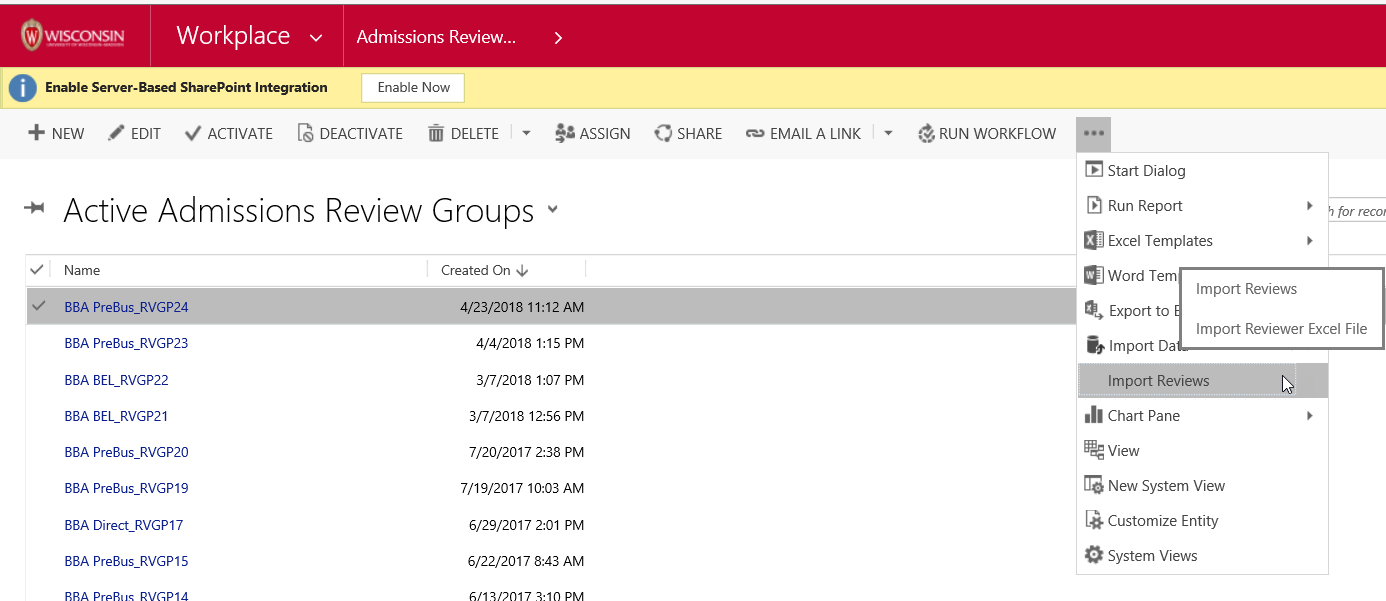
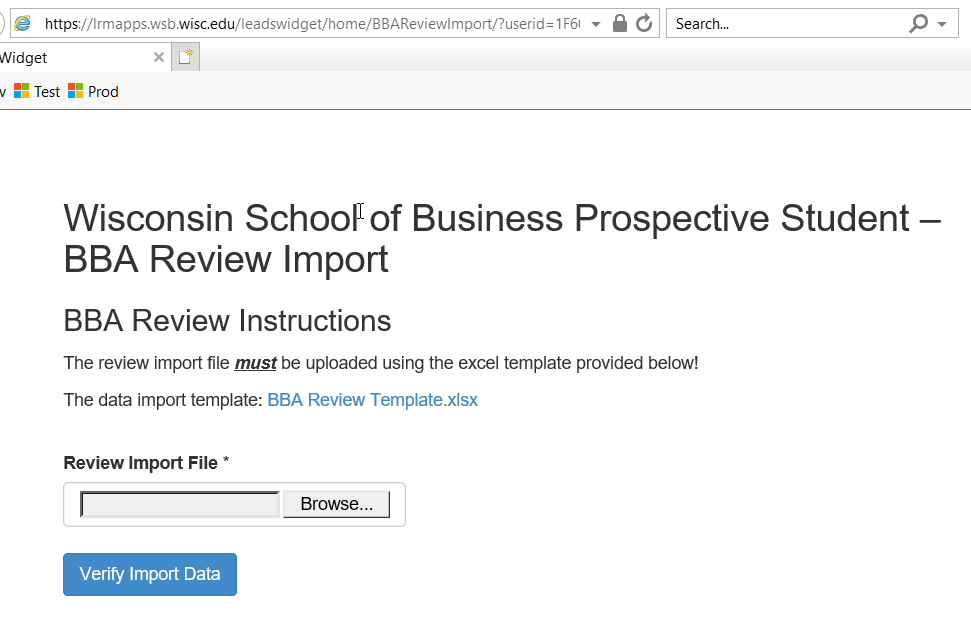
- From the Ribbon, click on 'Import Reviews', which loads the "BBA Review Import" web-application
- Download the 'BBA Review Template'
- Using the Excel file generated when the group was created, update the template (the Applicant ID and Group Number)
- Update the Excel file with the scores
- Navigate to the 'Admissions Review Group' in the LRM (Workplace > Logs & Upload)
- Upload the scores
- Navigate back to the the "BBA Review Import" web-application (in the previous step)
- Upload the Excel file you've updated with the scores, Applicant ID and Group Number
- A scheduled task will
- process the records once a day at 5AM (in production; every 15min in Dev/Test)
- create an Admissions Review record for the application, if none exists
- create a Review Score record, associated with the Admissions Review record and the item reviewed