
-
Created by
 Kassandra Swearingen, last updated by Erica McConnaughey on Apr 02, 2025
4 minute read
Kassandra Swearingen, last updated by Erica McConnaughey on Apr 02, 2025
4 minute read
Design
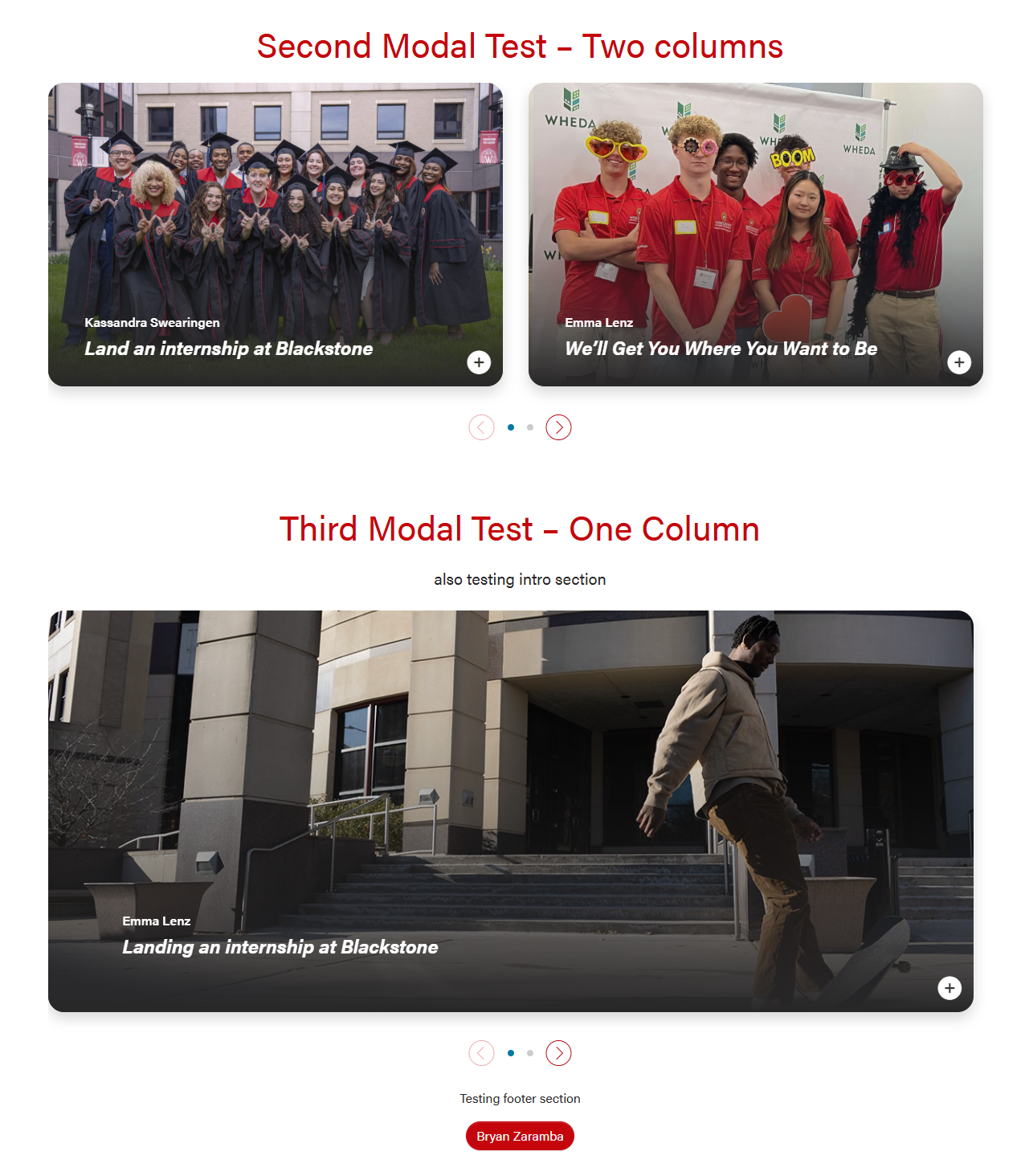
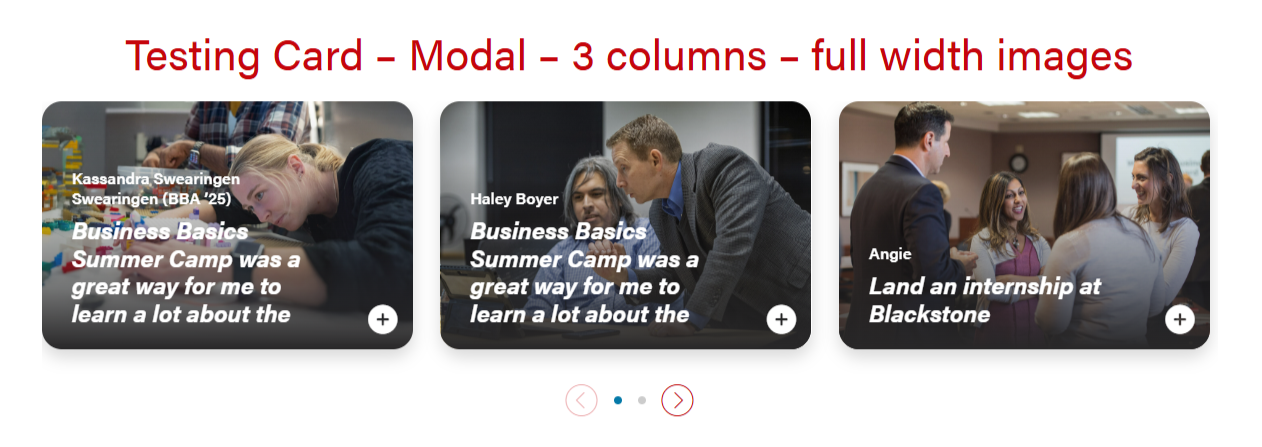
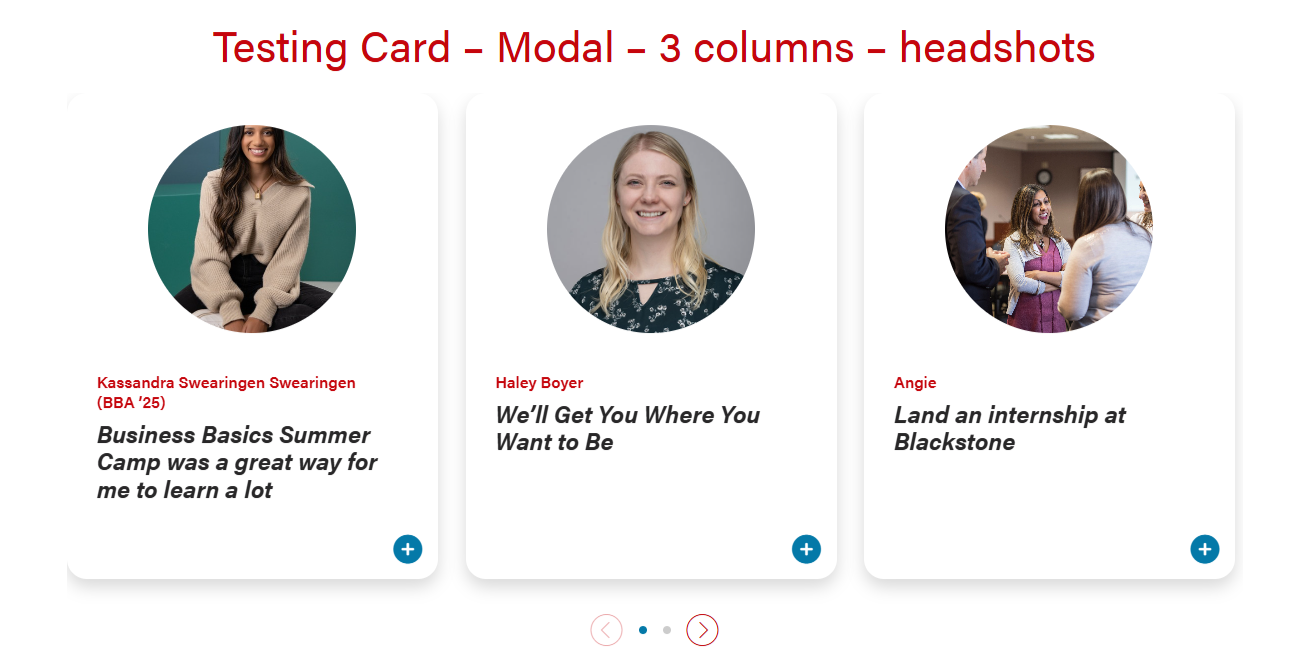
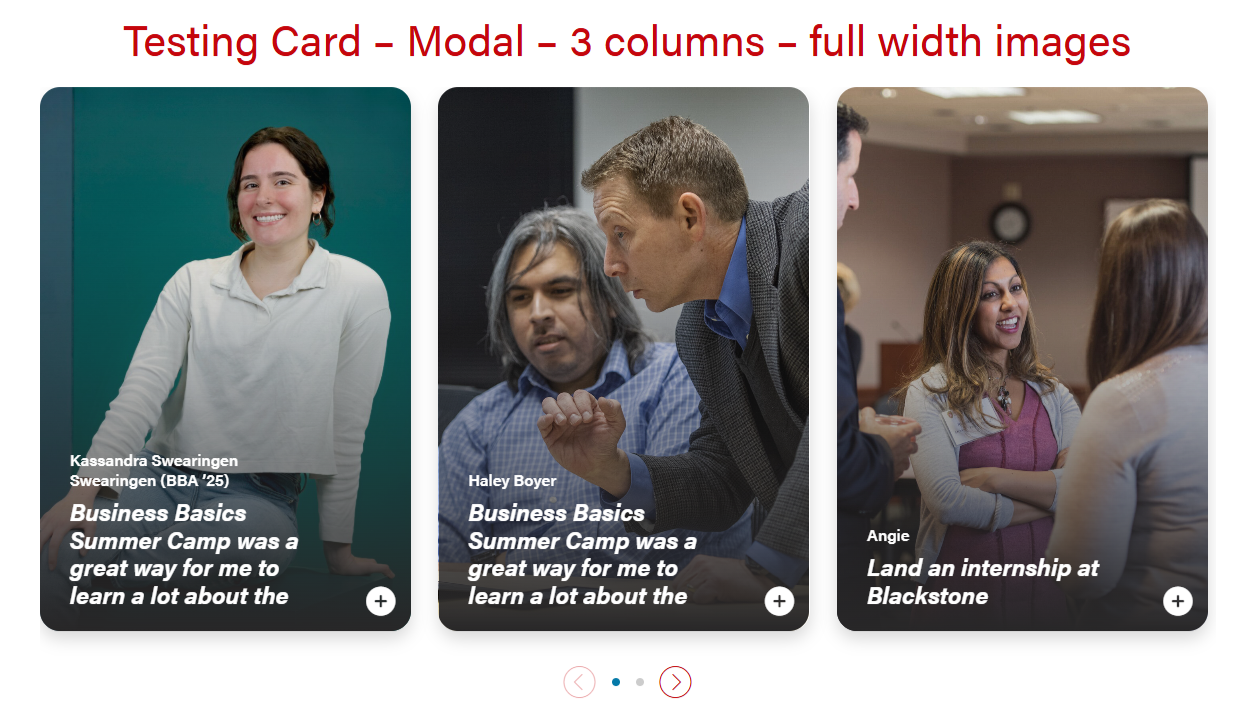
Card with full-width or circle headshot images that can open into a modal for more information. There are options for 1, 2, or 3 columns.
There is an open modal button on the lower right corner of the cards that can be a stretch link. There are two modal close buttons in the modal popups (upper right corner and bottom right corner).
| Examples of full-width and headshot modal cards and 1, 2, 3 columns | |
|---|---|
|
|
|  |
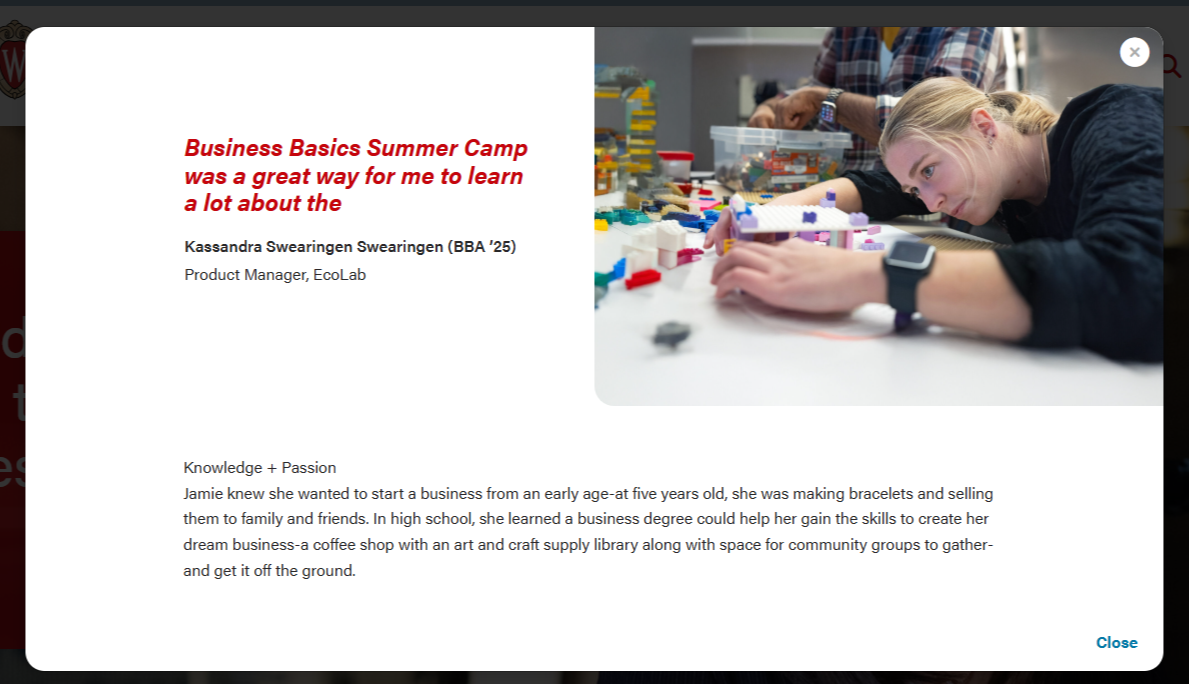
Modal for full-width cards. The header will be 50/50 for desktop and tablet, and full-width for mobile.
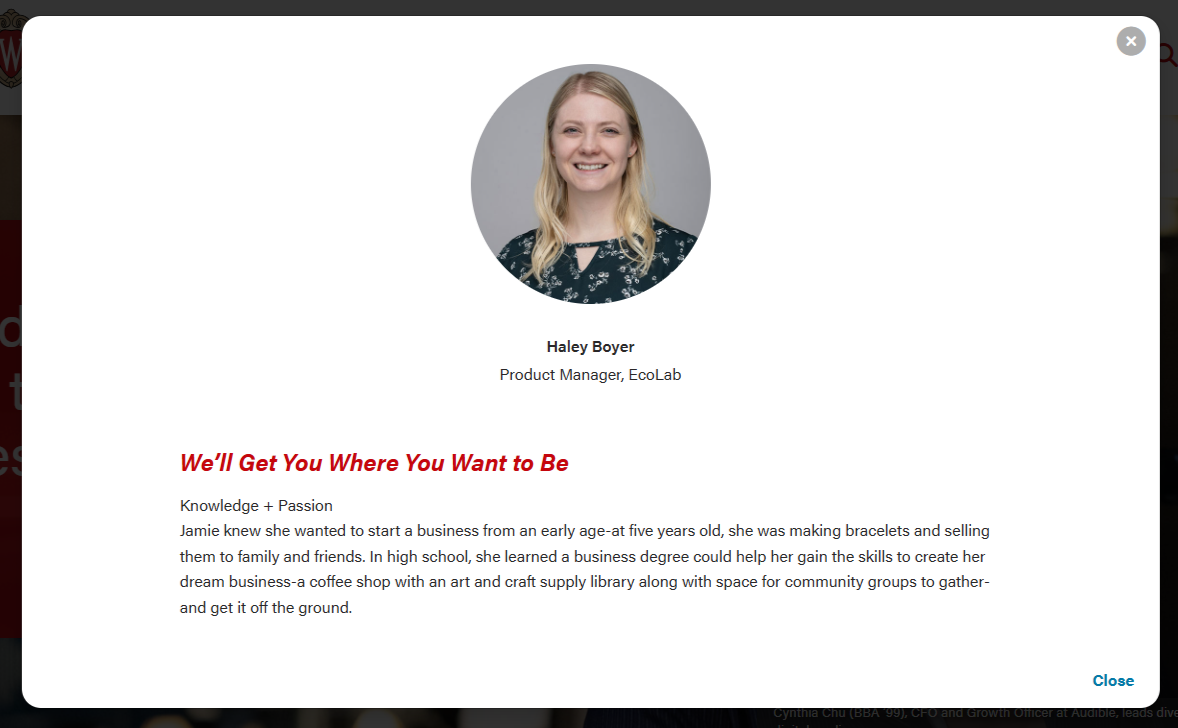
| Modal for circle crop headshot. The layout will be the same in desktop, tablet, and mobile.
|

Use Cases
- For storytelling or when you want to share a lot of information in a modal. The card displays a small amount of copy and the modal shows more detail.
- Example: Student stories on BBA Careers page
Fields
Card section
Limit the amount of copy in the cards, since more detail can be shown in the modal.
- Microtitle (optional) - Keep this short. Can be used as a microtitle or for person's name with parenthesis for graduation program and year
- Character limit: copy should fit on one line, so the limit depends on number of columns in the layout
- Use this field OR the card supporting copy field, especially for cards with full-width background images.
- Title - This field should have content so the card has an html heading
- Character limit: 40 characters
- Card Supporting Copy (optional) - Use sparingly. Only use when the title character limit is too restrictive
- Character limit: 70 characters
- Card Image - you can use the standard image size of 2400x1600px for horizontal cards. You can use vertical images as well to make the cards vertical, but you will need to add a horizontal image to the modal image override field for the image to display correctly at the top of the modal.
- Crop image to circle? - use for square headshot images
Modal Popup section
- Modal Title Override - can override the card title. This can have more characters, but it's still best practice to keep the title short.
- Supporting Details - WYSIWYG for job titles, company, or majors
- Modal Image Override - you can override the full width image used in the card section
- Modal Text - WYSIWYG for modal copy. You will need to use inline classes and HTML for styles.
- Modal code template - contains code and styling classes for elements such as horizontal rules, microtitle subheadings with yellow triangles, and pull quotes
- To use template - copy and paste the code below into WYSIWYG field, then modify to fit your content
Modal Code template
Add copy here
<figure class="wp-block-pullquote mx-0 my-4 text-start">
<p class="fs-5">add quote here</p>
</figure>Add copy here
<hr class="hr-gray my-5" />
<h3 class="microtitle mb-3"><img class="microtitle-arrow" alt="" src="/wp-content/uploads/2024/10/Two-toned-yellow-arrow-digital-100x164-1.png" width="9" height="15" aria-hidden="true" /> Subheading</h3>
Add copy here
<figure class="wp-block-pullquote m-0 text-start">
<p class="fs-5">Add quote here</p>
</figure>How it looks:
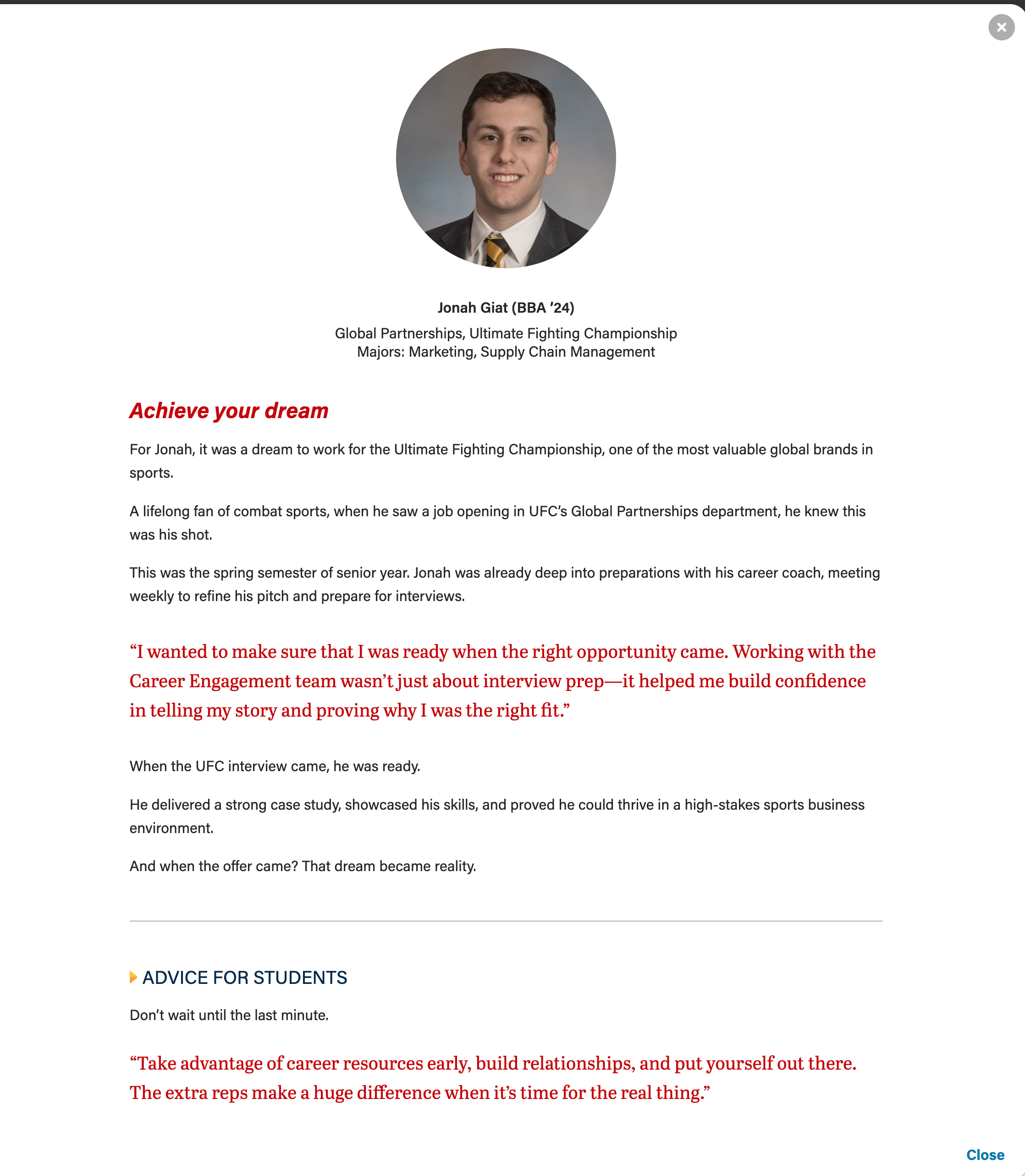
- Modal code template - contains code and styling classes for elements such as horizontal rules, microtitle subheadings with yellow triangles, and pull quotes
Configuration section
- Number of columns - you can select one, two, or three columns. Three columns is the default.
- Please note that headshot/circle crop style should only be used with two and three column layouts.
- Stretch link? - this will make the modal open when a user selects anywhere on the card. Checked is the default.
- Number of columns - you can select one, two, or three columns. Three columns is the default.
Introduction and Footer sections
- These are standard sections for many of our custom blocks.